
The Q Loader Setup contains several different applications that all relate directly to the Loader including: Loader Options, Class Rules, Section Linking, Team Definitions and Prepare Mid-Year.
Loader Setup is located under the Schedule menu in Q.

The first tab in Loader Setup is Options. The Loader Options may also be accessed and set from within the Loader application. Options can be maintained for the selected track, even if the track cannot be scheduled. These options tell the Loader which parts of the Loader constraints to use, set priorities for the Loader Constraints, and define general time and scheduling attempt parameters for a Loader run.
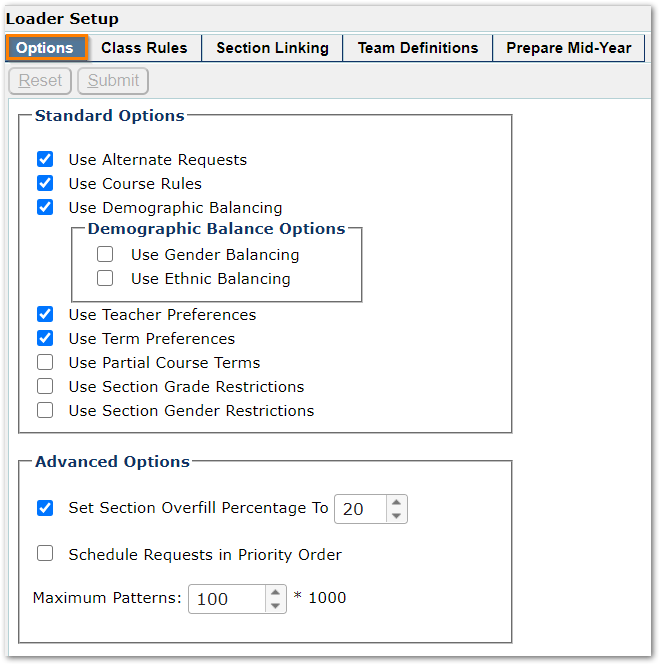
Standard Options:
- Use Alternate Requests—check this box to use students’ alternate course requests
- Use Course Rules—check this box to have the Loader use the Class Rules defined in the Loader Setup, Class Rules application.
- Use Demographic Balancing—check this box to have the Loader balance the students in courses based on the Demographic Balancing Priorities you select:
- Use Gender Balancing
- Use Ethnic Balancing
- Use Teacher Preferences—check this box to have the Loader use any Teacher Preferences added to student course requests
- Use Term Preferences—check this box to have the Loader use the Term Preferences added for student Course Requests
- Use Section Grade Restrictions—check this box to have the Loader use Section Grade Restrictions entered on course sections in the Master Schedule. If this option is not selected, the Loader will honor the default grade restrictions defined for courses in the District Courses application
- Use Section Gender Preferences—check this box to have the Loader use Gender Preferences entered on course sections in the Master Schedule. If this option is not selected, the Loader will honor the default gender restrictions defined for courses in the District Courses application.
Advanced Options:
- Set Section Overfill Percentage to—check this box and use the arrows to define the percentage amount over the maximum defined section size the Loader may overload the section
- Schedule Requests in Priority Order—select this to have the Loader schedule students following the priorities entered on the course request
- Set Maximum Patterns—enter the maximum number of different schedule combinations that should be tried (times 1000) for each student before terminating the attempted scheduling for that student. In an effort to help the Loader run efficiently, it is suggested that the Maximum Patterns be set to 100.

The second tab in Loader Setup is Class Rules. Class Rules defines relationships between two different courses and how the loader will schedule them, based on those relationships. It is important when creating Rules to not create any conflicts with any Teams or Section Links that may be in use. If the Team set-up tells the Loader to do one thing, but the Rules tell it to do another, it will simply do neither.
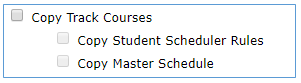
The first time setup of Loader Rules will take longer than in subsequent years. Loader Rules are maintained from year-to-year as long as the option to Copy Student Scheduler Rules is selected when New Year Init is run.
When the Class Rules tab is clicked all existing Rules display.
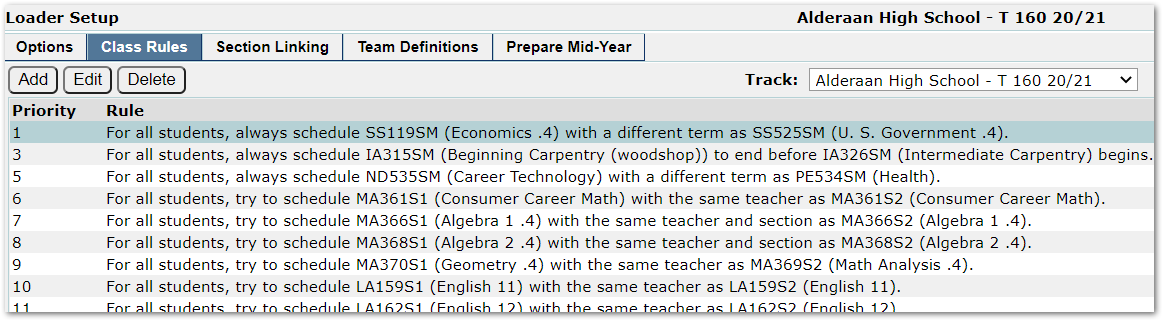
There are two types of Class Rules:
- Before/After Rules—where you might instruct the Loader to, for example schedule Biology before Biology Lab
- Same or Different Rules—where you might instruct the Loader to, for example, schedule a student into section 2 of Biology Lab if that student is scheduled into Section 2 of Biology; or schedule the student with any Faculty Member besides Mr. Smith for Biology if the student is scheduled with Mr. Smith for Biology Lab.
As Rules are defined you have the choice to make them either “Hard” or “Soft”. Hard Rules are rules that the Loader MUST follow or it cannot schedule the class (or classes) tied to that Rule. Soft Rules are Rules that the Loader will try to follow, but if it can’t it will schedule the student into the class (or classes) anyway in violation of the Rule.
To Add a Class Rule:
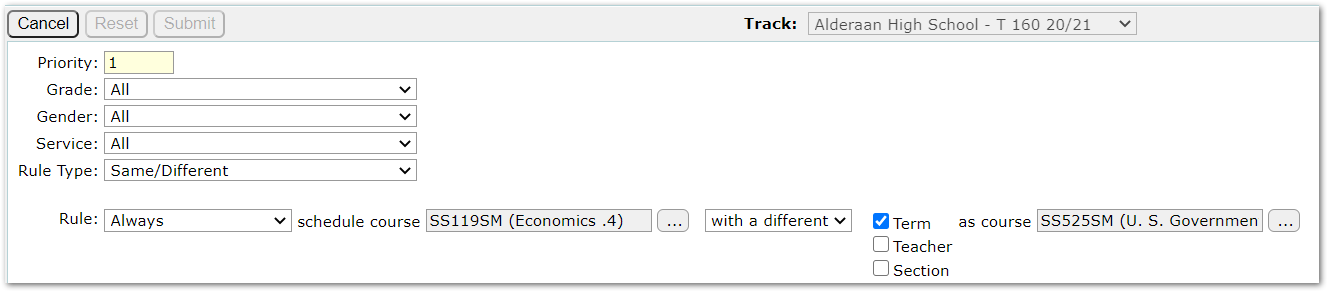
- Click Add
- Priority—will populate automatically with the next number in rule sequence
- Grade—if you want the rule to apply to a specific grade level, select it from the drop down
- Gender—if you want the rule to apply to a certain gender, select it from the drop down
- Service—if you want the rule to apply only to those in a certain service group select it from the drop down
- Rule Type—choose the Type of Class Rule to use
- Before/After—these rules deal with how the Loader should schedule courses across Terms. These Rules in no way tell the Loader to schedule Before/After Periods. They only deal with terms. Some examples of Before/After rules:
- Always schedule Class 1 to begin before Class 2 begins
- Never schedule Class 1 to begin before Class 2 begins
- For students in grade 10, try to schedule Class 1 to end before Class 2 begins
- For students in grade 10, whose gender is female, never try to schedule Class 1 to begin after Class 2 begins
- Same/Different—where you might instruct the Loader to, for example, schedule a student into section 2 of Biology Lab if that student is scheduled into Section 2 of Biology. Some examples of Same/Different rules:
- Always schedule Class 1 with the same teacher as Class 2
- Try to schedule Class 1 with a different teacher than Class 2
- For students in 12th grade, never schedule Class 1 in the same term as Class 2
- For students in the 9th grade, whose gender is male, try to schedule Class 1 with the same section number as Class 2
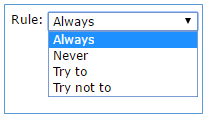
- Select rule—choose hard (Always/Never) or soft rule (Try to/Try not to)
- Hard Rules are rules that the Loader MUST follow or it cannot schedule the class (or classes) tied to that Rule
- Soft Rules are Rules that the Loader will try to follow, but if it can’t it will schedule the student into the class (or classes) anyway in violation of the Rule
- Before/After—these rules deal with how the Loader should schedule courses across Terms. These Rules in no way tell the Loader to schedule Before/After Periods. They only deal with terms. Some examples of Before/After rules:
- Schedule Course—select course by clicking the three dots … a pop up menu opens with course code and course description available. Select desired course

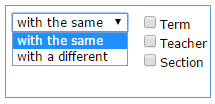
- Select same/different—using drop down choices select same or different and then mark the Term, Teacher or Section box to indicate your choice
- As Course—select second course in the same fashion as the first course was selected
- When all selections have been made click Submit.
To Edit a Class Rule:

- Select rule to be edited from the rule list
- Click Edit
- Make desired change to rule
- Submit
To Delete a Class Rule:

- Select rule to be deleted from the rule list
- Click Delete
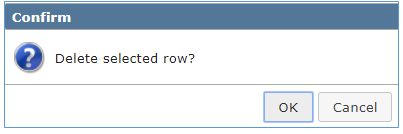
- Click OK
A report listing all defined rules is available in the Loader Checklist Report by selecting the Loader Rules Listing option.

Use of section linking is optional. Section linking is used to associate Master Schedule course sections with one another. When a student is scheduled into a linked course, they are automatically scheduled into sections specified in the “link tree”. When entering Course Requests, linking requires that the student ONLY receives a course request for the “Root” link in a link tree. Linking is SECTION specific, not course specific. You are linking Section 1 of English to Section 3 of Math, not linking English to Math.
The typical use of section links would be in a middle/junior high school where sometimes a school wishes a group of students to remain together throughout a series of core courses.
The list of available sections comes from the list of sections in the Master Schedule for the selected track.
Links place a significant constraint on the Loader because each link tree (set of root and child sections) removes flexibility in scheduling requests. Section Links can only be created once sections of courses have been placed in the master schedule.
The first section to be placed in the link tree is called the root section. All other sections of the link tree are tied to this root. The root section is the ONLY course that should be entered as a course request. If there is a possibility that the root section alone (i.e. without any child sections) can be part of any student’s course requests, then a different course should be chosen to serve as the root section.
Each root section consists of one or more child sections. The child sections should NEVER be part of a student’s course request list if the child section is going to be linked to a root. It is acceptable, however, to include the child section as a discrete request for students who do not have a request for the root section. (i.e., for students who do not need to be a part of the set of courses represented by the root section.)
It's a good idea to print a copy of the master schedule before creating section links to assist with selecting child sections. After links are created verify the selected linked sections are correct by using teacher and period information from the master schedule.
To create a section link:
- Launch Loader Setup
- Click Section Linking tab
- Click Add
- Select the root section by double clicking on a section in the Available Sections list or highlighting a section and using the mover button (you can easily find a course by using the filters)
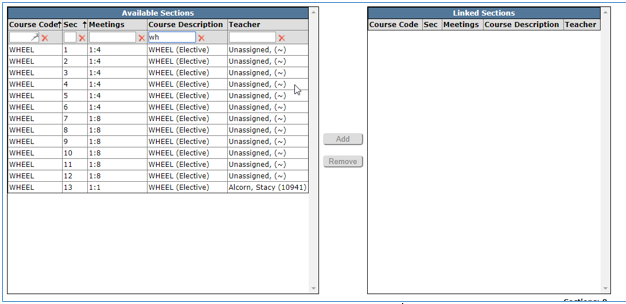
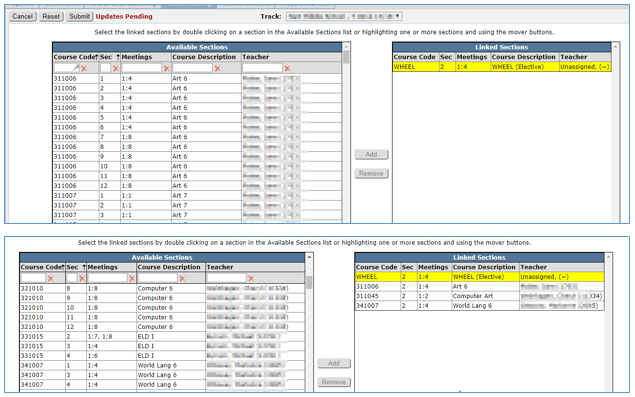
- After the root has been added select the sections to link from the available sections
- Double click on a section to add, multiple sections may be added by highlighting desired sections and using the Add mover button
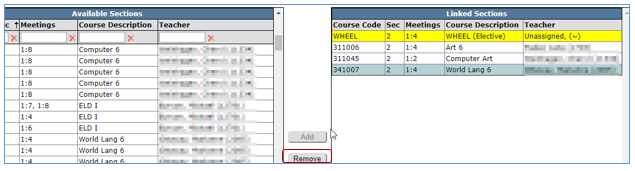
- Sections may be removed from the link by highlighting and clicking the Remove button
- When the link is configured to your satisfaction click Submit to Save.
View Existing Links
- All links created for a track may be viewed on the section linking screen. The Roots are displayed on the left hand side of the screen, clicking on a Root will display all sections linked to the root on the right hand side of the screen
- Links may be edited by clicking the Edit button
- Links may be deleted by clicking the Delete button
- Note: when working in the Master Schedule and attempting to delete a section the system will check to see if that section is involved in Section Linking before continuing. If the section to be deleted is used in a Link a message displays saying the section may not be removed until it's deleted from the link tree.
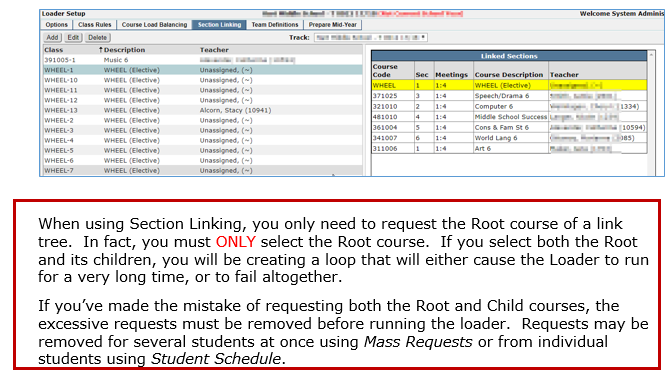
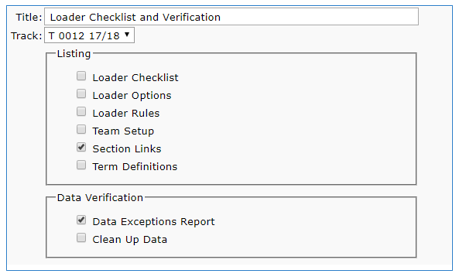
A listing of all links with Root courses and their children may be obtained from the Loader Checklist & Verification report. To print just the Section linking remove the checks from all other items in the listing. The Data Exceptions Report will alert you if there are requests for both root and child.

A Team is a group of course sections defined for scheduling purposes. Typically, Team scheduling will cause a group of teachers to share the same group of students, from class to class or period to period. Teacher’s sections will eventually be tied to Teams. Students will also be associated with Teams if they have a Team request.
When the Loader uses Teams, they are used based on Inclusions and Exclusions. If the Team a student is in matches or is Included with the Team a section is tied to, the student will be scheduled into that section. The student will be excluded from any section that is tied to a Team defined as Excluded from that Student’s team.
Adding a Team
To add a Team:
- Launch Loader Setup
- Click Team Definitions tab
- Click Add
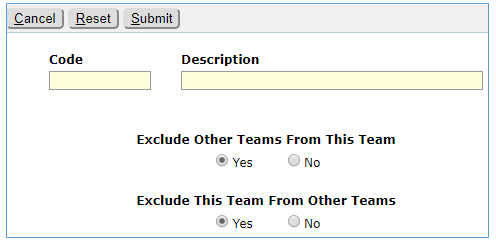
- Enter a Team Code - Team codes are limited to 6 characters. The Team Code appears on the Master Schedule Report
- Enter a Team Description - Team descriptions may be longer than 6 characters. The Team Description appears in the Master Schedule Manager Team drop down list
- Exclude Other Teams from this Team – This will add all other Teams to the exclusion list for this Team if it is left at Yes. If this is set to NO, all other Teams will become a part of its Inclusion list.
- Exclude this Team from other Teams – This will add this Team to the exclusion list of all others if it is left at YES. If this is set to NO this Team will be added to the Inclusion list of all other Teams.
- To view relationships of existing teams, click the Team Name on the left hand side of the Team Definitions tab to display relationships on the right hand side
Editing a Team
To edit a team:
- Select team to edit from Team List
- Team Codes may be changed
- Team Descriptions may be changed
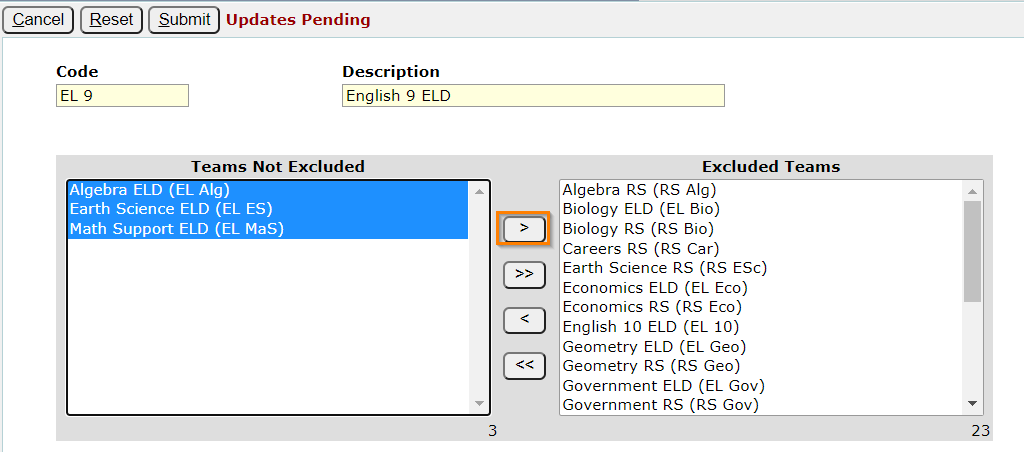
- Changes may be made to Teams Not Excluded by clicking excluded team from list of excluded teams and clicking the arrow to move them to left
- Teams may not be deleted if there are any Master Schedule records tied to the team.
Scheduling using Teams
When building the Master Schedule a course section can be assigned to a pre-defined Team. A group of sections may be assigned to the same Team. Students may also receive a request for the Team when entering course requests. The loader will process this type of request when scheduling students
Students will be scheduled with a group of teachers that have sections with a Team selection that matches the Team that the student has a Request for. Or, based on Inclusion options, a student with a different Team Request may be scheduled into a section tied to a different team if that student’s team is part of that other team’s inclusion list.
Assign a course Section to a Team
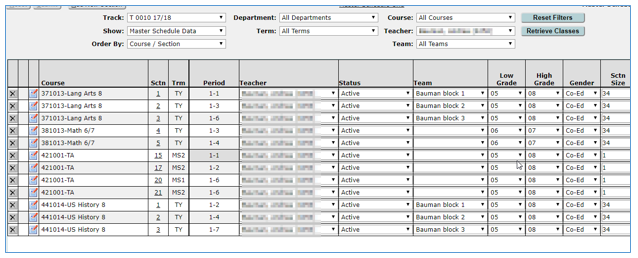
Sections are tied to Teams when building the master schedule using the Master Builder and/or the Master Schedule Manager. When building individual sections the team may be added on the Section Information screen. Teams may also be attached to multiple sections using the Master Schedule Manager.
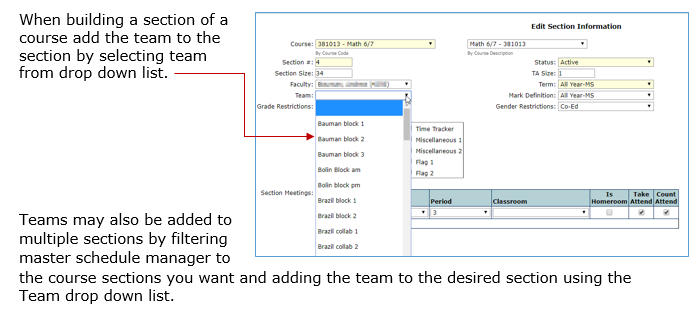
NOTE: When adding teams to course sections if a team is added to one section of a course all sections of the course must have a team attached. In some instances a team called “No Team” may be created and attached to those sections that don’t have a specific team.
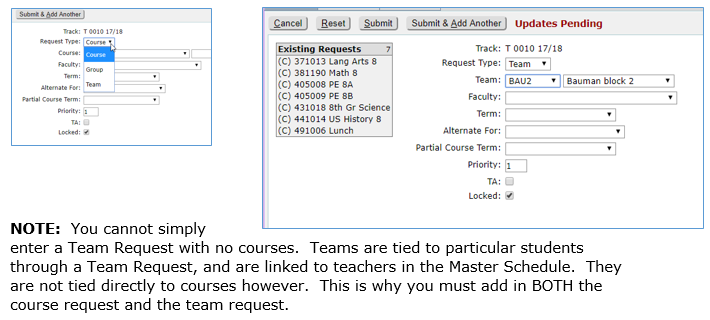
Add a team course request
Students are associated with Teams by adding a Team Request to their set of Course Requests. When the Loader is run, it will attempt to schedule the student into sections of courses that the student has Course Requests for, which also have the same Team designation. If the student’s Team is Excluded from other Teams, it WILL NOT schedule that student into any section of those courses that are tied to the excluded teams.
Team requests may be entered in bulk by using Career Plans or Mass Requests. They may also be added to individual students in Student Schedules as a request.

While most schools schedule students for the entire school year, some schools may want to schedule one term at a time, while others will schedule the entire year and then reschedule the second (or subsequent) term(s). The Prepare Mid-year application provides a mechanism for “locking down” student schedule records in previous terms so subsequent terms can be scheduled without affecting the previous term schedules.
The scheduling process in Q consists of three steps:
- Gathering and entering course requests
- Building the Master Schedule using the Master Schedule Manager
- Running the Loader to load all students in classes.
The last step of the scheduling process, running the loader, will recalculate all student schedules each time it is run, based on course requests, the Master Schedule, and the various class rules applied. The Loader itself cannot be directed to schedule a specific term to the exclusion of other terms in the same track because the Loader must, by necessity, erase all previous student schedules each time it recalculates, with the exception of schedule records that are prescheduled or “locked down”.
Prepare for Midyear allows the user to “lock down” student’s previous term schedules, including the requests referenced by these schedule records, so subsequent terms may be scheduled without affecting the previous term.
To use Prepare Mid-Year:
- The user specifies a track and then a term to be scheduled. The choice of term will be limited to those terms that are not flagged as progress reports and do not have a trmstart of value of "1" (these are attributes of Term codes as defined in the Lookup Codes, category; Terms). Also excluded are terms containing classes that have attendance data posted for any student.
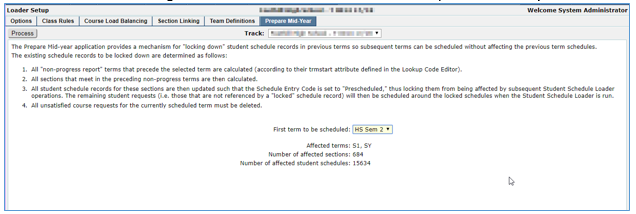
- Once an eligible term is selected to be scheduled, the Midyear process will determine the existing schedule records to be locked down using an internal, three-step process as follows:
- All "non-progress report" terms that precede the selected term are determined (according to their trmstart attribute defined in the Lookup Codes, i.e., they must have a trmstart value less than the trmstart value of the chosen term. The trmstart field is used to define the chronological order of the terms.
- All student schedule records for one of these flagged sections are then flagged internally with a “Prescheduled” code in their Schedule Entry Code field (escdchgyc), thus locking them from being affected by subsequent Student Schedule Loader operations. The remaining student requests (i.e. those that are not referenced by a “locked” schedule record) will then be scheduled around the locked schedules when the Loader is run.
- All unsatisfied course requests for the currently scheduled term must be manually deleted either through the interface or by a DBA using SQL.
- Select a Track to be scheduled.
- Select a term to schedule from the drop down list from the First Term to be Scheduled field. Only eligible terms will be available for selection. If the school has more than two terms, select the first term of the remaining terms in the range (in chronological order). After the Midyear process is run, all terms previous to this first term selection will be locked down and all terms following this first term will be available for scheduling.
- Process
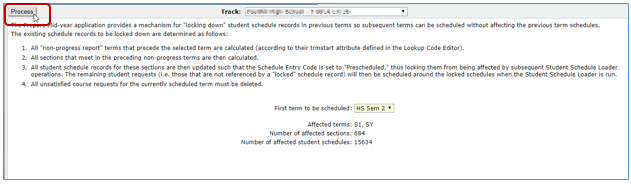
CAUTION: The following procedure will make batch changes to Schedule records in the database. These changes are only possible to reverse if a backup copy of data files in maintained.
After Prepare Mid-Year is complete students may be scheduled in the next term using the Loader for batch scheduling students or Student Schedules for individual students.
