
Class Attendance is a class banner application primarily used by teachers to enter attendance for their assigned classes. Teachers typically are only given access to data for the courses they are assigned to teach, for the logged-in track. Users with roles other than teachers may view all courses, depending on their permissions.
Class Attendance is located under the Attendance menu in Q.
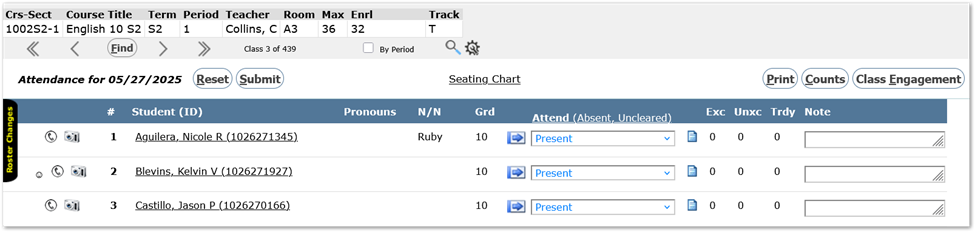
Choose a Class
Select a class to record attendance. When a class is selected, the Class Banner displays details such as course title, period, and room number. These details are configurable.
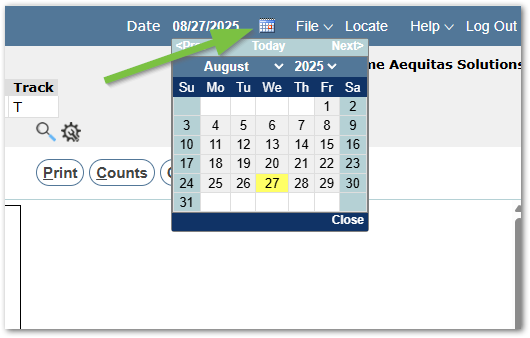
If no classes are available, check the system date. If you login on a non-school day, no classes will show. Click the calendar at top right to change the system date to the correct school day for the classes needed.
For more detailed information regarding Class Banner and how to search for courses, refer to the Class Banner documentation.
Attendance Status
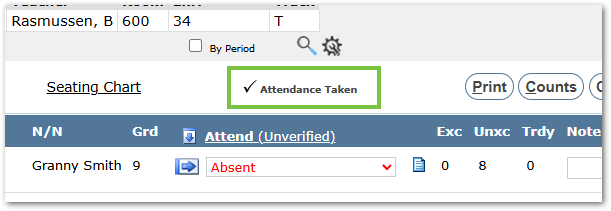
To see at a glance if attendance has been taken for a class, check for the presence of an asterisk in the banner at the end of the course title, and a message across the top with a checkmark indicating ‘Attendance Taken’.

Verify Attendance Date
The Attendance For date displayed above the class shows the effective date for attendance. Attendance is typically recorded for today’s date. To record attendance for a different date, users can change the system date using the calendar icon at the top right of the page but should remember to change it back after.
Note
The ability to record attendance for prior or future dates is controlled by school permissions and the attendance configuration for the track.
Seating Chart / Roster Link
Class Attendance defaults to a roster view. Teachers may create a Seating Chart for their classes using the Seating Chart application. If a seating chart exists for the class a Seating Chart link will appear. Teachers with seating charts may toggle between Roster and Seating Chart views using the view link.
Attendance by Period Option
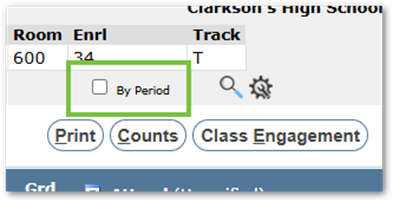
By default, the By Period option is unchecked. When enabled, this option allows the user to take attendance for all students in the same period. For example, in schools where TAs are scheduled in a separate class, teachers may find it more efficient to check this option.
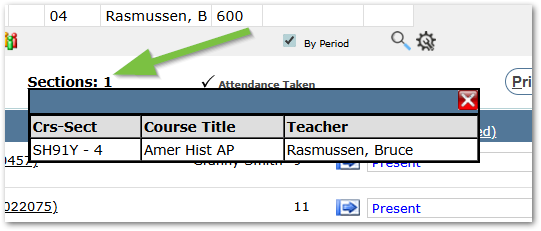
When By Period is enabled, the Class Banner displays only the class period, teacher name, and room number, along with a “Sections” link that indicates the number of sections.
Clicking the “Sections” link opens a table listing all sections. Clicking it again or closing the table will dismiss the view.
Note
This option can be selected after choosing a class. Doing so will refresh the page, displaying all students for the specified period.
Roster Changes Tab
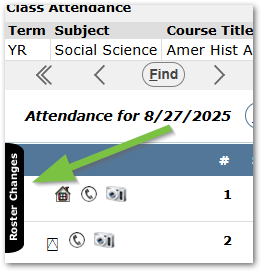
If any roster changes have occurred in the prior 5 days, the tab font color will transition from white to yellow. Clicking the tab will open a panel that displays recent changes. Clicking anywhere in the open tab will close it.
The Class Attendance application shows the students enrolled in the class on the effective date, along with detailed information about the students in the class. Icons to the left of each student’s name convey program and alert information at a glance and may be clicked to access detail information..

Alerts - Students with specific medical, behavioral, or legal conditions may have alert icons displayed. Users’ ability to view alert details depends on their permissions. Clicking an icon opens a pop-up window with the date and description/details.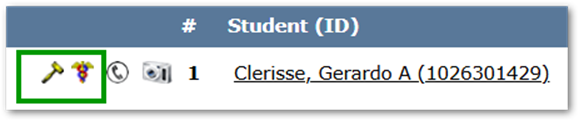
Contact Details - Displays contact information, including name, relationship, and phone numbers
Student Photo - Displays the student’s photo if one is available
Accommodations Log - A house icon indicates the student has accommodations. Clicking the icon opens a dialog for the teacher to log the accommodation provided with any notes.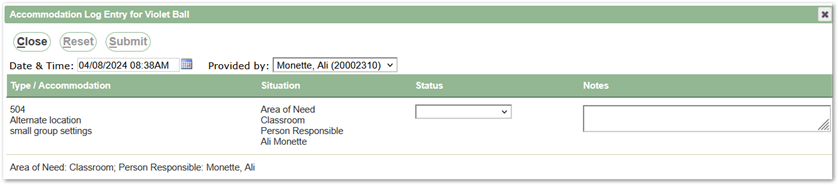
Programs - Displayed as a code or district-selected wingding. Programs such as AVID or 504 Plan are for informational purposes only; no program details are revealed.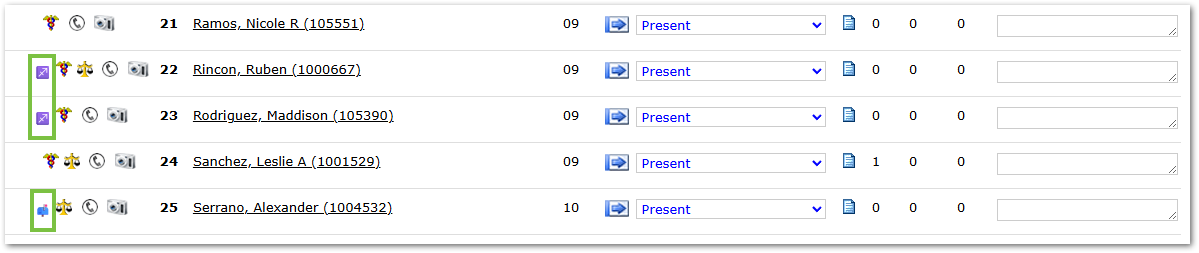
# - Number – In the Roster view, hovering over the number will show their entry and exit dates in the class.
Student Name Link – Clicking on the student’s name will open another browser window to that student in the Student Profile.
Pronouns – The student’s pronouns if identified within Student Editor.
N/N (Nickname) – For students who prefer a nickname, users can click the edit icon, enter a nickname, and submit. Nicknames recorded during enrollment appear for all teachers; teacher-entered nicknames appear for that teacher only.
Grd – The student’s current grade level, displayed in roster view only.

Attend – The attendance column includes the following functionality:
Column Label – Displays the default attendance code in parentheses. Click to select an alternate code. Available codes for your school may differ from the example screenshot.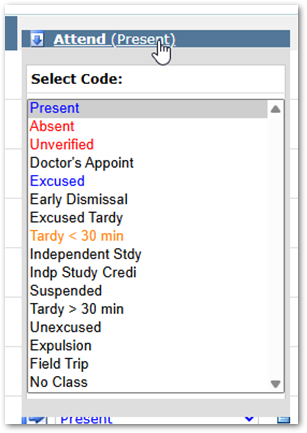
Blue Arrow Icon – Applies the selected attendance code.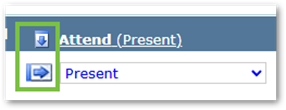
Attendance Menu – Drop-down list of attendance codes available to the user. Teachers typically see a smaller set designated for their use; office staff see the full set. The example below shows a traditional set of Teacher codes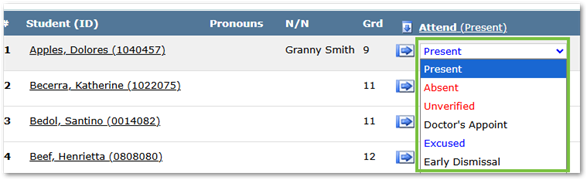
Attendance Detail Icon – Opens a pop-up displaying a full-year summary of the student’s attendance. A red icon indicates the previous school day’s attendance was not the assumed code. (absent in a negative attendance track or present in a positive attendance track).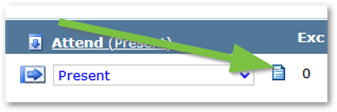
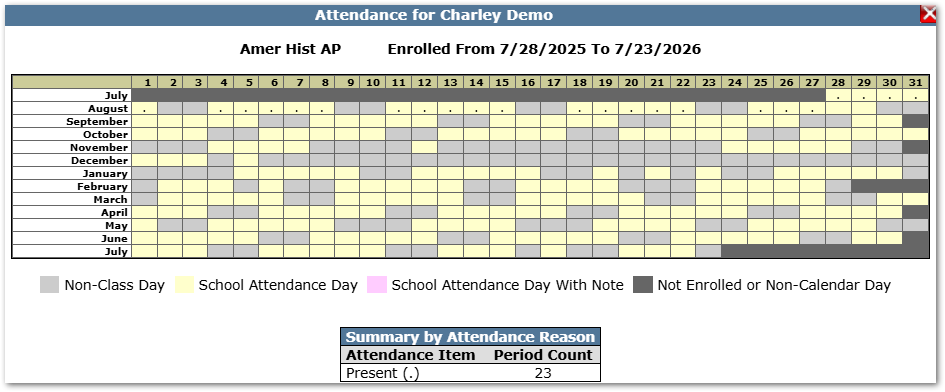
Exc/Unxc/Trdy – In the roster view, these columns display the number of excused absences, unexcused absences, and tardies accumulated by the student in the class.
Note
Teachers may enter a short note regarding a student’s attendance for the day. Notes also appear in the Student Attendance application and Student Attendance with Notes report.
Print Button – Generates a PDF attendance report listing students, IDs, and grade levels with columns for recording attendance and comments.
- Teachers might use this report when taking attendance away from a computer (e.g. on a field trip).
- If attendance has already been submitted, the report includes those values. In that case, the report would be useful as a verification sheet.
- Teachers may also print this roster for a substitute to record attendance
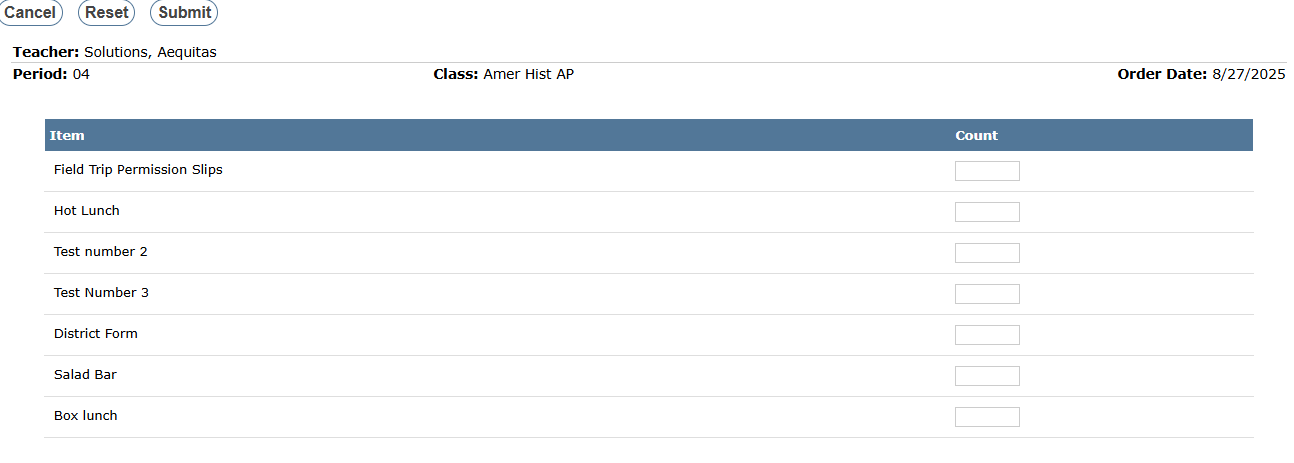
Counts Button – If configured, any items to be tallied by class (e.g., students wanting a hot lunch, yearbook orders, milk flavors, etc.) can be entered and submitted.
Class Engagement Button – Allows users to easily navigate to the Class Engagement application for the selected class.
The features available in Roster mode are present in Seating Chart mode, with the following exceptions:
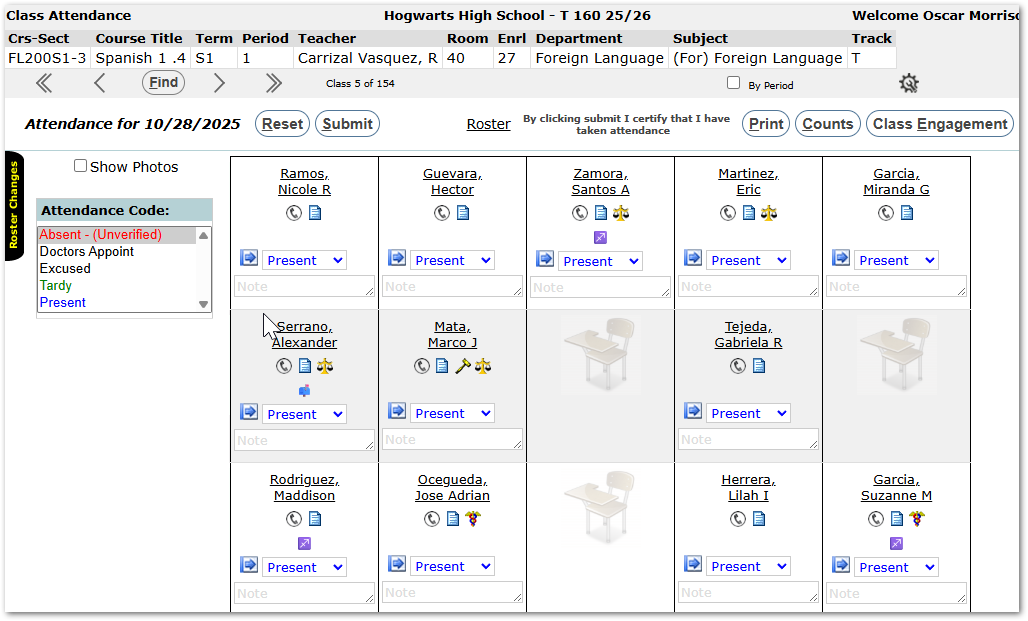
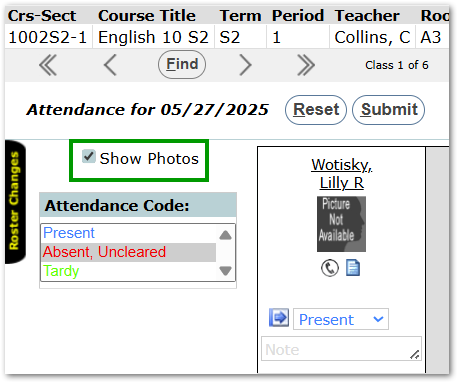
- Student photos are displayed by default but can be hidden using the “Show Photo” checkbox near the top left of the page.
- Nicknames are displayed but cannot be edited.
- Grade levels are not listed.
- Entry/Exit dates are not displayed.
- The tally of excused absences, unexcused absences, and tardies is not displayed.
Default to Seating Chart
Teachers who prefer to take attendance by seating chart can change the preference in the Class Attendance Application. Click the Gear icon at the bottom left of the browser window, select “Seating Chart” in the Settings column, and click the Submit button.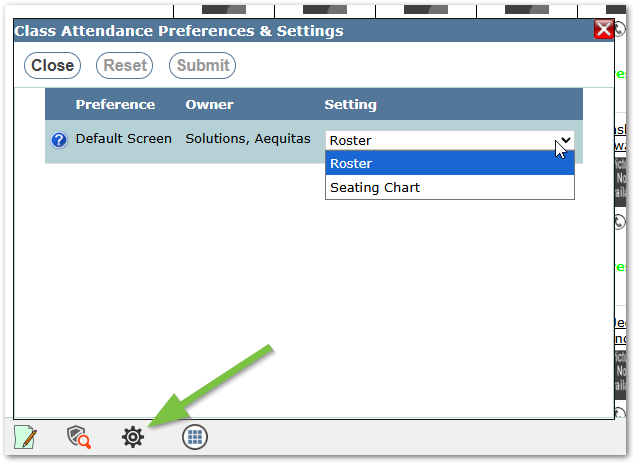
A default attendance code appears at the top of the Attend column, based on district and school track settings. For example, each student may be assumed “Present,” while the default code that the teacher can apply appears in parentheses, such as “Absent (Unverified).” If an attendance clerk has already entered attendance (e.g., for a medical appointment or scheduled field trip), that value is displayed and cannot be overwritten by the teacher.
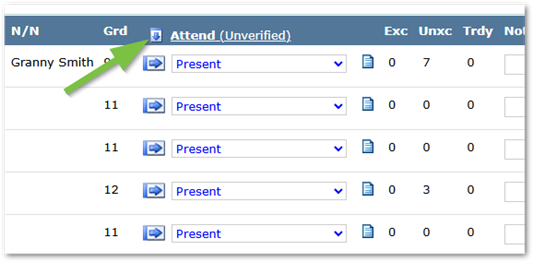
To apply the default or any other attendance code to an individual student, click the blue arrow next to the student’s Attend column. To apply a code to all students in the class, click the down arrow in the column heading and select the desired code. You can also click the individual student drop-down and select a code.
In seating chart mode, attendance codes are listed at the top left of the page; users can highlight a code and apply it using the blue arrow icon or select a code from the drop-down list for the student.
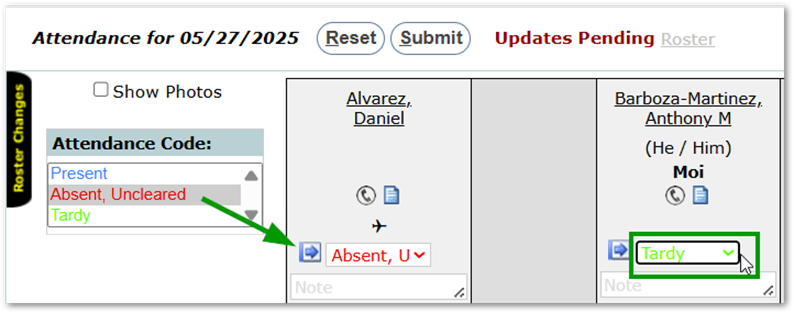
After selecting attendance codes, users must click the Submit button to save changes. An “Attendance Taken” notification will appear just below the Class Banner, and an asterisk will appear in the Course Title banner, making it easy to identify which classes have attendance recorded for the day. Even if all students are present, attendance must still be submitted. Changes can be made and resubmitted if needed.
Some districts choose to display a certification message at the top of the Class Attendance page, if displayed this message will print on attendance reports.
Schools are configured to use either Positive or Negative Attendance. In Positive Attendance, all students are initially assumed absent and must be marked as present. In Negative Attendance, all students are initially assumed present and must be marked as absent.
If all students display as “Absent” and the default attendance reason at the top of the Attend column is “Present” (Positive Attendance), the district may opt to provide a “Fill” option. If available, clicking the down arrow at the top of the Attend column will fill “Present” for all students. Individual records can then be updated for students who are not present.
