The Success Plan Manager application allows districts to define and create data element queries, called Indicators, from pre-defined data areas in Q including enrollment, attendance, behavior, academics, testing, and others. Once an Indicator is defined, it can utilize a district-defined rubric to assign points to students based on the Indicator results for a student. The district assigns Indicators to a Plan to create a predictive model that can be used to identify students’ status based on the total number of points accumulated for all Indicators in a Plan.
For example, a district might have an academic Plan consisting of Indicators related to grades and grad credits. The Indicators would assign points for low grades or low grad credits. There may be a second Plan for behavior that calculates student status based on the Indicators for suspensions and involvement in specific behavior events.
Success Plan data is not live data. It is calculated at a frequency determined by the district (typically once per night). For more information on setting up the Success Plan calculation, refer to the Technical Information section of the Success Plan Manager documentation.
Success Plan Manager is located under the Analysis menu in Q.
The Success Plans tab allows users to define the Plans that calculate a student's status. The Plan definition includes the Indicators used to calculate points for the Plan, as well as the minimum number of points needed to include students on watchlists.
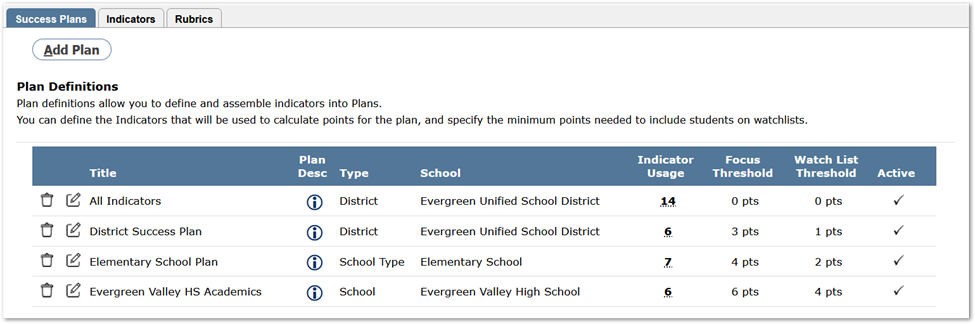
To add a new Plan click Add Plan. To edit an existing Plan click the edit icon on the left of the row. To delete a Plan click the Delete icon on the left of the row. The delete icon will only appear if the logged-in track has ownership of the Plan.
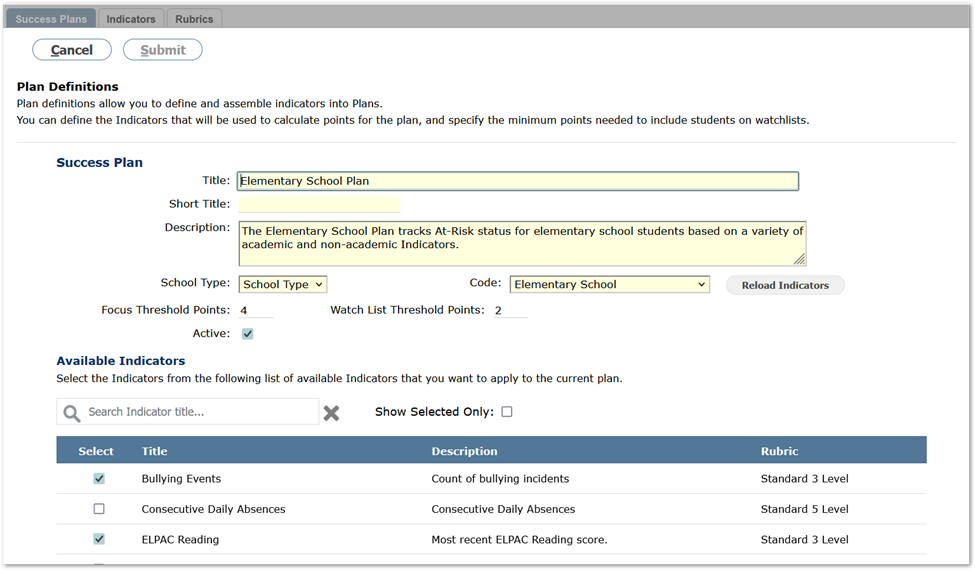
- Title - Title of the Plan.
- Description - Description of the Plan.
- Type - If set to District, every student in the district will be assigned the Plan. If set to a School Type, only students enrolled at that School Type will be assigned the Plan. If set to a School, only students enrolled at that school will be assigned the Plan and users logged-in to the school will be able to edit the plan in Success Plan Manager.
- Code - If Type is set to either School or School Type, this drop-down menu will become active and allow you to select the specific School or School Type.
- Reload Indicators - Click this button to remove all Indicators from the Plan. A pop-up window is displayed prior to removing the Indicators to confirm the changes.
- Focus Threshold Points - The minimum number of points a student must be assigned by the Indicators in the Plan to have a status of ‘Focus’.
- Watch List Threshold Points - The minimum number of points a student must be assigned by the Indicators in the Plan to have a status of ‘Watch List’.
- Active - If this box is unchecked the Plan will not be visible in the Success Plan by Student application.
- Available Indicators - Indicators need to have the ‘Calc Rubric’ box checked in their definition in order to appear in this list. Check the box in the Select column for each Indicator that should be included in the Plan. The search bar can be used to find Available Indicators from the list. Check the Show Selected Only box to view all Indicators that are currently in the Plan.
There is a Submit button at the top of the page to save any changes. Clicking the Cancel button reloads the previous screen without saving changes.
The Indicators tab allows users to create Indicator definitions. Indicator definitions allow you to define and configure the type of indicator, select a rubric, and configure the thresholds and points assigned for the rubric. The Indicators you define can be assigned to Plans that are used to monitor watch lists and student status.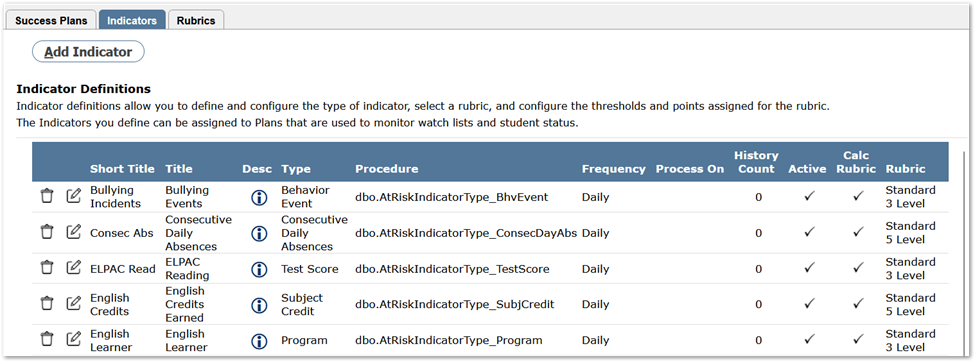
To add a new Indicator click Add Indicator. To edit an existing Indicator click the edit icon on the left of the row. To delete an Indicator click the Delete icon on the left of the row. The delete icon will only appear if the Indicator has not been used to calculate student Indicator values.
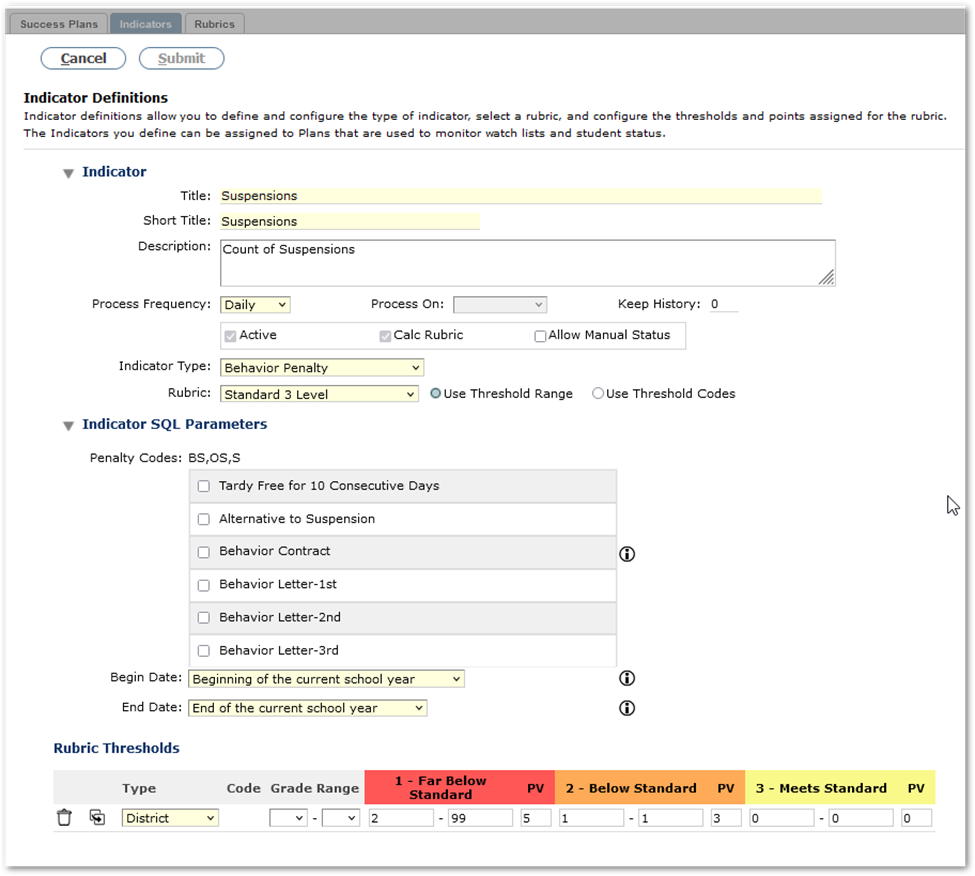
- Title - Title of the Indicator.
- Short Title - Short Title of the Indicator.
- Description - Description of the Indicator.
- Process Frequency - This value determines how often the Indicator will be calculated.
- Process On - If Process Frequency is set to either Weekly or Monthly this field will be editable. Select the day or date the Indicator should be calculated.
- Keep History - Select how many historical records should be maintained for this Indicator
- Active - If this box is unchecked the Indicator will not be visible in Success Plan by Student
- Calc Rubric - If this box is checked the Indicator may be added to Plans and will be visible in the Success Plan by Student application. If the box is unchecked the Indicator can still be used as a filter within Q Analytics.
- Allow Manual Status - This field is reserved for future use.
- Indicator Type - Select the data area this Indicator will query to calculate the Indicator value.
- Rubric - The rubric used by the Indicator to assign points. If the Calc Rubric box is checked this field will be editable.
- Use Threshold Range - If this box is checked the Rubric Thresholds will assign points based off whether the Indicator value falls with a range of values.
- Use Threshold Codes - If this box is checked the Rubric Thresholds will assign points based off whether the Indicator value matches a specific code.
- Indicator SQL Parameters - The parameters will vary for each Indicator Type. Place your cursor over the information icon at the right of the parameter to read its description.
- Rubric Thresholds - The thresholds displayed will vary depending on Rubric and whether Use Threshold Range or Use Threshold Codes is selected.
There is a Submit button at the top of the page to save any changes. Clicking the Cancel button reloads the previous screen without saving changes.
Example #1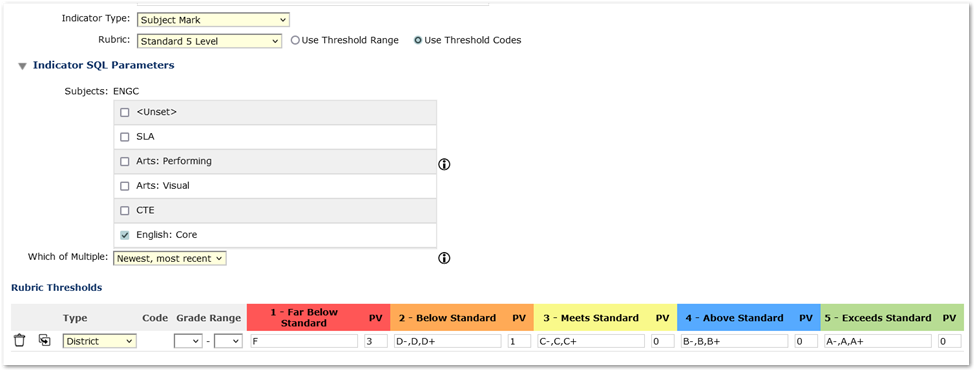
The above Indicator is going to return the student's most recent mark in a course that has a subject of English: Core. There will be 5 levels the student's value can fall in to. Since the value returned is a letter mark, the rubric will use threshold codes.
If a student has an F they will be assigned 3 points. If they have a D-, D, or D+, they will be assigned 1 point. All other marks will earn the student 0 points.
Example #2
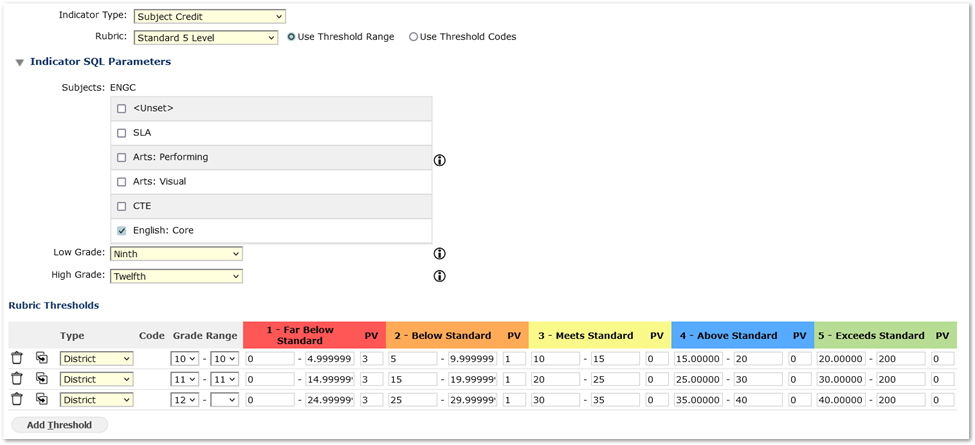 The above Indicator is going to return the number of credits a student has for the subject of English: Core. There will be 5 levels the student's value can fall in to. Since the value returned is a number, the rubric will use threshold ranges.
There are 3 Thresholds defined because the number of credits a student is expected to have varies depending on their grade level. One threshold is defined for 10th graders, a second is defined for 11th graders, and the third is defined for 12th grade and up. For example, a 10th grader with fewer than 4.9 credits will be considered Far Below Standard, while a 12th grader with fewer than 24.9 credits will be considered Far Below Standard.
The Rubrics tab allows users to create Rubrics. Rubrics consist of Rubric Levels. Indicators are associated to a Rubric and use the Rubric Levels to determine the assignment of points to students.
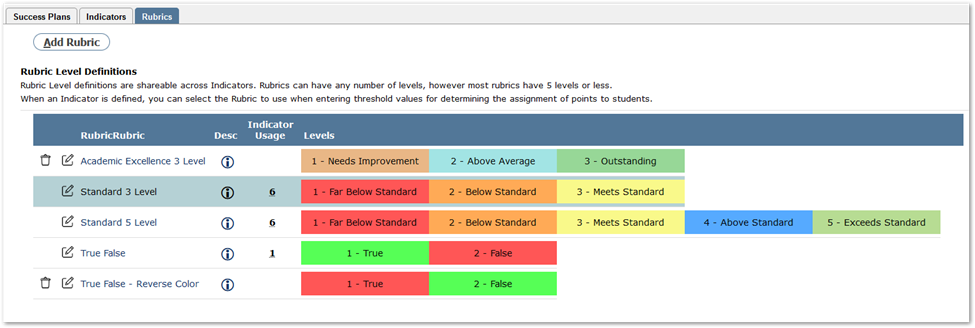
To add a new Rubric click Add Rubric. To edit an existing Rubric click the edit icon on the left of the row. To delete a Rubric click the Delete icon on the left of the row. The delete icon will only appear if the Rubric has not been associated to an Indicator. Hover the mouse cursor over the icon/number in the Desc/Indicator Usage column to display additional information.
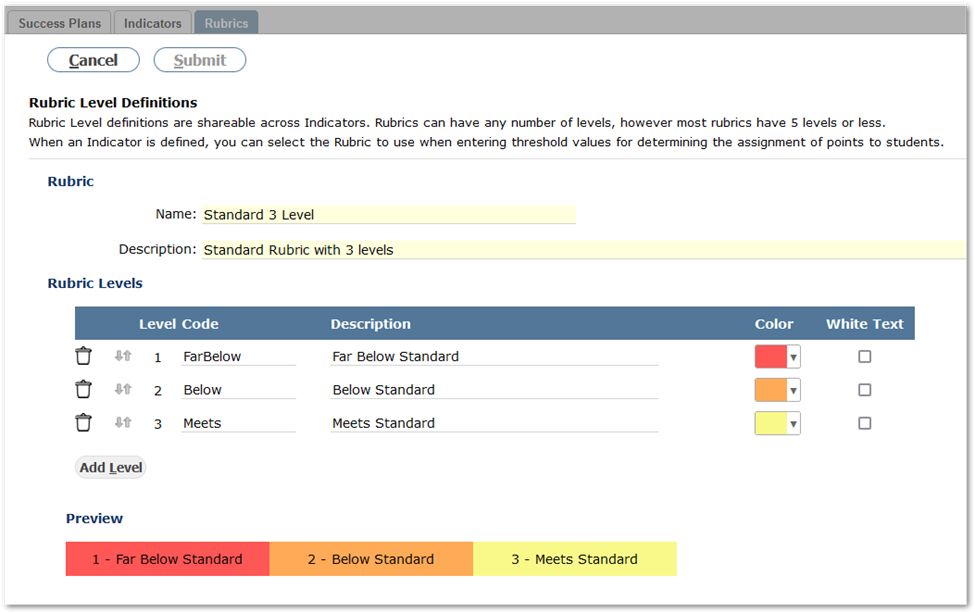
- Name - Name of the rubric
- Description - Description of the rubric
- Rubric Levels - Click Add Level to add a new Rubric Level. The delete icon at the left of the row deletes the level. Click and drag the arrow icons to reorder the levels. Assign a Code, Description, Color, and optionally check ‘White Text’ for the Rubric Level.
There is a Submit button at the top of the page to save any changes. Clicking the Cancel button reloads the previous screen without saving changes.