
The Behavior Setup application has two primary functions:
- Referral Recipients: Define which staff members may receive Behavior Referrals.
- Policy Defaults: Set a default policy for a given combination of behavior type and involvement.
Behavior Setup is located under the Behavior menu in Q.
The Behavior Referral Recipients interface is composed of 2 lists: Available Staff and Selected Staff. Only selected staff will be available to receive Behavior Referrals in the Student Discipline application. This allows the district to directly control which staff members receive referrals.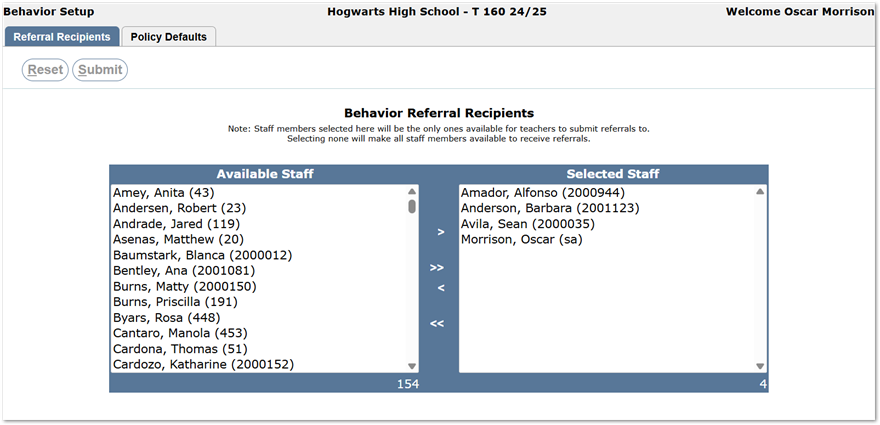
Note
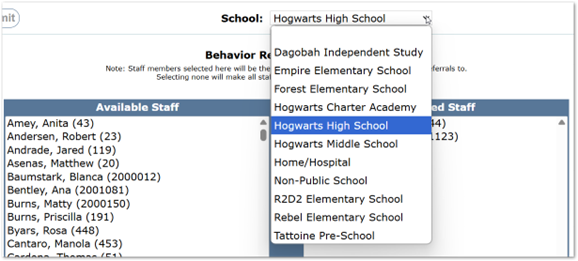
When accessing the application from the district track, a “School” menu will be displayed as pictured below.
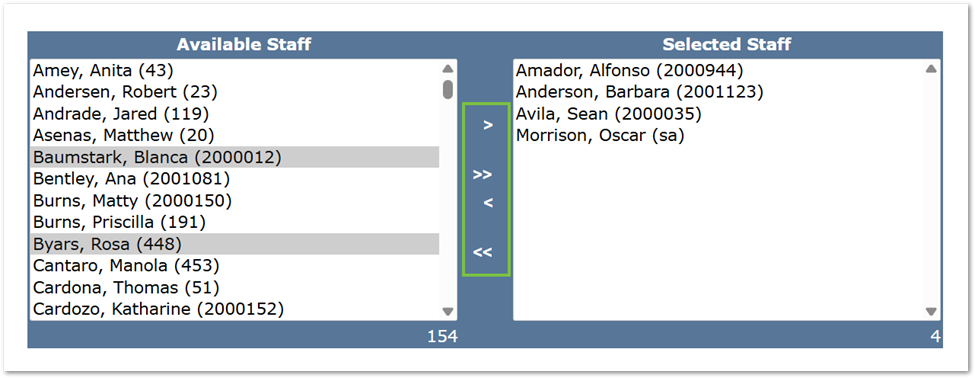
- Click to highlight the names of available staff who will be allowed to receive behavior referrals. Use Ctrl-Click to select multiple staff.
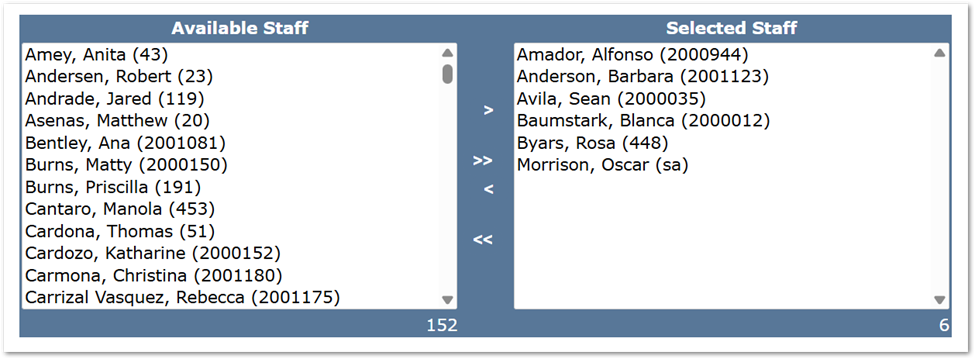
- Use the arrow buttons in the middle of the screen to move the selected staff members between the two lists.
- The single arrow buttons, > and <, will move only the highlighted staff to the left or right lists.
- The double arrow buttons, >> and <<, will move the entire list to the left or right.
- Click the Submit button near the top left of the screen to save the selection or the Reset button to restore the last saved list.
- Once saved, only the Selected Staff will appear in the ‘Reported To’ menu under the Referrals tab of the Student Discipline application.
- Additionally, the Selected Staff also appears in the ‘Reported To’ menu when making a referral from the Class Behavior application.
Warning
If no staff member is placed in the Selected Staff column, then ALL staff will be considered available to receive referrals
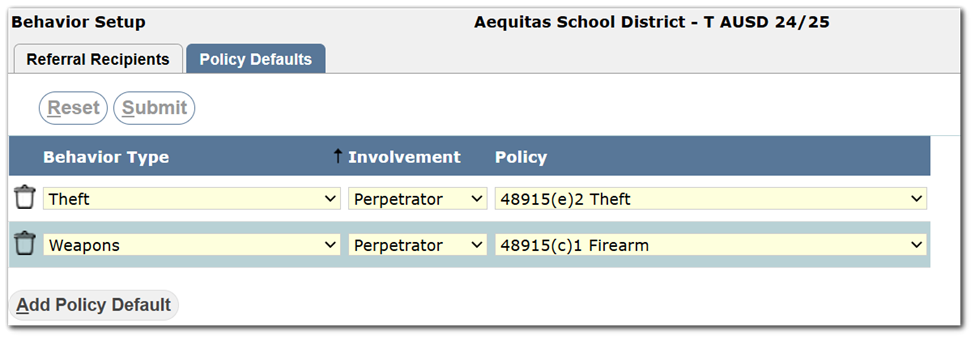
The combination of Behavior Types (e.g. attendance, assault, or weapon) and a student’s Involvement (e.g. Perpetrator, Victim, or Witness) can be configured to trigger one or more Policy references to be posted in the student’s Behavior History record for a given incident.
Typically, an involvement as a Perpetrator with a specific behavior type will be set to trigger a specific policy violation to be posted to a student’s record, but the policy referenced does not necessarily have to represent a conduct violation.
The existing policy defaults appear under the “Policy Default” tab as pictured below.
School districts should configure policy defaults before adding or editing incident records using the Student Discipline application, as the defaults may affect a participant’s involvement record. For more information about adding Behavior Types, Involvements, and Policies via Lookup Codes, please review the Q Configuration Guide for Behavior.
Add Policy Defaults:
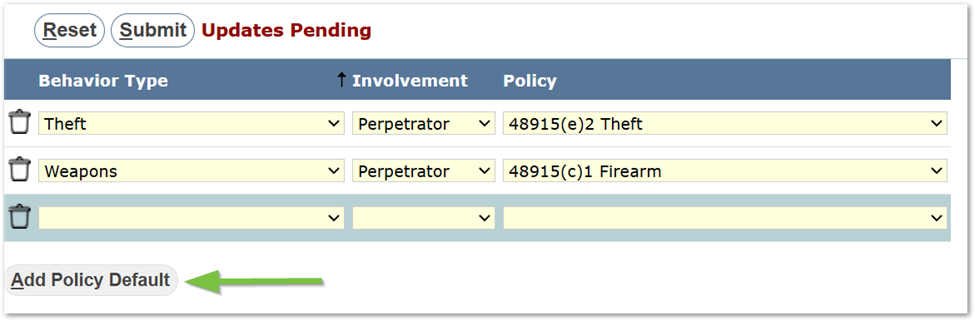
- To add a new Policy Default, click the Add Policy Default button. Once clicked, a new row will appear at the bottom of the list. Use the drop-down menus to select the desired Behavior Type, Involvement, and Policy combination. Users can add additional Policy Defaults by clicking Add Policy Default
- Once finished, users can click the Submit button at the top left to submit changes or Reset to return to the last saved list.
Note
View the Behavior Setup video below to see this process demonstrated in real-time.
Edit or Delete Policy Defaults
- To edit an existing Policy Default, use the drop-down menus to change the value for Behavior Type, Involvement, or Policy.
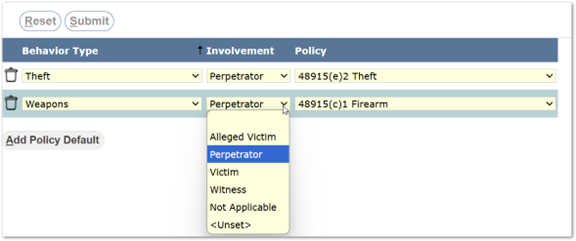
- The Trash Can icon
 removes that policy from the list.
 - Click the Submit button to confirm the deletion of the policy or click the Reset button to restore the policy.
- Once finished, users can click the Submit button at the top left to submit changes or Reset to return to the last saved list.
Note
Changes to an existing policy default will not affect existing records in a student’s Behavior History. Changes made will only affect future applications of the default policy.
