The Student Test History application stores for individual students the history of standardized tests taken and their sub-test scores. Examples of standardized tests include SAT, ACT, AP Exams, English Language assessments such as CELDT in California or WIDA in Michigan, and state proficiency examinations.
Although test history records may be individually entered using this application, most standardized test data is typically imported (in bulk) for the school or district by a database administrator using the Q Test Import application. The data is then available in the Student Test History application for reviewing, editing and reporting.
Student Test history is a Student Banner application.
Student Test History is located under the Testing menu in Q.
For each individual student, the set of test history records will appear. For students in upper grades there may be many test records. 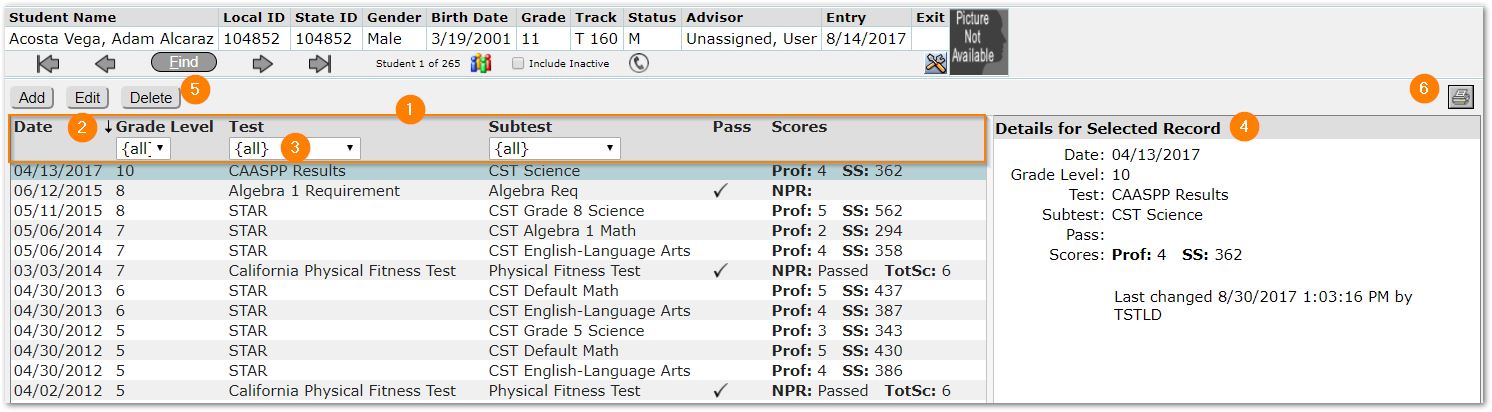
- The available fields displayed for each record are:
- Date – The date the test was taken.
- Grade Level – The grade level of the student when they took the test.
- Test – The name of the test.
- Subtest – A portion of the test, assessing specific content.
- Pass – Indicator of pass or fail.
- Scores – Measure of the student’s performance on the subtest. There are often more than one score type for each subtest.
- The set of records at left may be sorted by clicking on the desired column header. Clicking on the column header again will change the sort order of the column as indicated by the arrow.
- Filter fields may be used to narrow the test history results displayed. The available filter fields are Grade Level, Test and Subtest. The default is ‘All’ records. To change this, open the desired drop-down list and select the desired grade, test or subtest.
- For the highlighted or selected test at left, the details appear at right.
- To add, edit or delete a record, click the appropriate button.
- To print a report of the student’s test history, click the printer icon.
For the selected student, click the Add button.
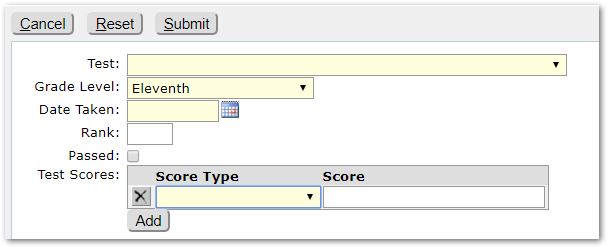
- Test - Select the desired Test from the drop-down list. The tests available are defined in Setup. Please see the Test Configuration guide for more information. Each combined entry in this list is made up of the description of the standardized test, the description of the sub-test.
- Grade Level – this will default to the student’s current grade level, but this field indicates the grade level of the student at the time the test was taken, so adjust the grade level as needed.
- Date Taken – Set to the date the student took the test.
- Rank - Enter the ranking of the student according to his/her standardized test score and other factors if this qualification is applicable.
- Passed - Enter a check mark in this box if the student received a passing score, if the qualification is applicable. This flag is used for tests that are an eligibility item in Graduation Requirements.
- Score Type - The type of score that will be used in the Score field below, such as Average, Composite, Numerical, or Percentile, etc.
- Score - Manually enter the score that the student received on this standardized test.
- If the student has multiple test scores, click Add and enter each additional test score.
- Test Items - Depending upon District Preference, some Tests and Subtests may have Test Items defined. Test Items are used to capture performance at a more detailed level. One example is ACT test scores which are comprised of Subjects (English, Mathematics, Reading and Science) and some Subjects have a sub-score for which a Test Item is used.
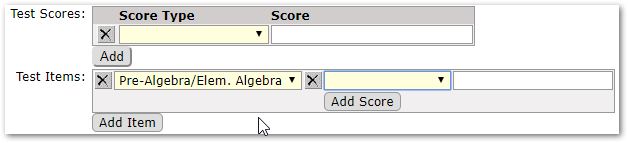
When Test Items are present, select the item, score type, and enter the score.
Note: Districts may have defined extension data fields for test history records. If so, they would appear below the Test Scores. Complete as appropriate following district guidelines.
Click Submit when complete.
To edit an existing record, select the record and click Edit. Make any necessary changes, referring to information in Adding a Record for guidance, and click Submit.
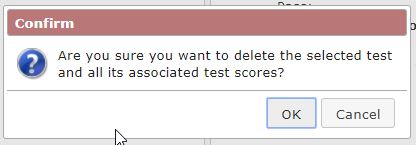
To delete a record, select the record, and click Delete. You will be asked to confirm that you do truly want to delete the selected test and associated test scores. If you are sure, cick OK. If unsure, cancel and review the record before proceeding.