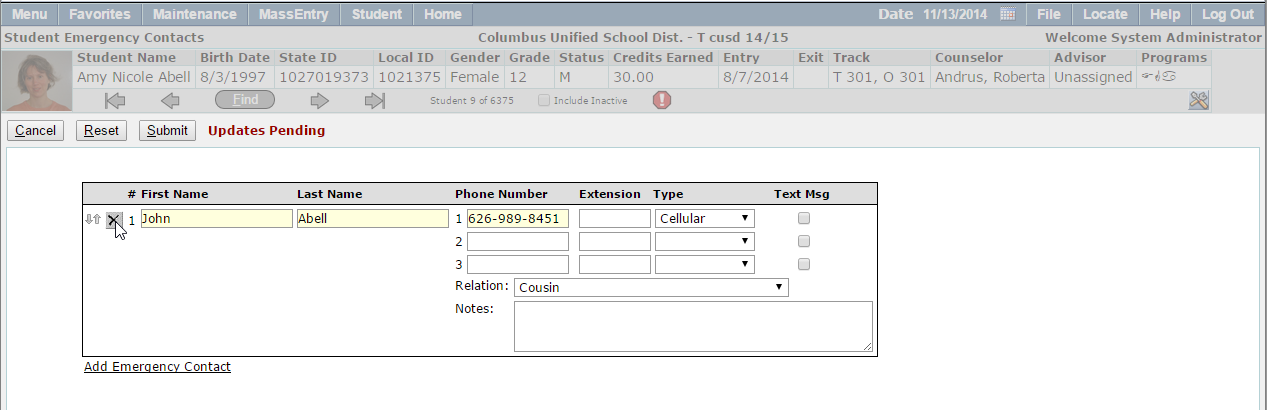
Student Emergency Contacts is a permissions-based web application that allows users to add, edit, and delete emergency contact information for students. The Student Emergency Contacts application enables users to make changes to emergency contacts for students in an area other than the Student Editor.
Student Emergency Contacts is a Student Banner Application.
Student Emergency Contacts is located under the Enrollment menu in Q.
Emergency Contacts are added and maintained differently than traditional student contacts. There is no district wide search that should be run to search for an existing contact.
To add a new Emergency Contact for a student.
1. Click Add/Edit 
2. Enter the Emergency Contact First Name, Last Name, and Phone Number.
Optional: Enter an Extension, Phone Type, Relation, and Notes if relevant for the contact.
3. Click Submit to save the record, Reset to clear the changes, or Cancel to return to the previous screen.

4. Add multiple contacts at a time by clicking the Add Emergency Contact link located at the bottom of the Contact list.
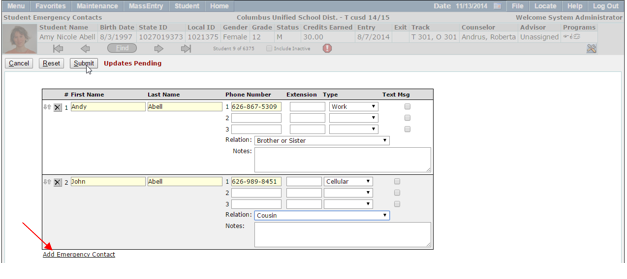
To edit or delete Emergency Contacts for students:
- Click Add/Edit.
- The contact information form will open in edit mode. Make the necessary changes and click Submit to save your changes.
- To delete a contact, click the X located to the right of the Emergency Contact that should be removed.
Tip: Use the arrows to change the order in which the Emergency Contacts are displayed.
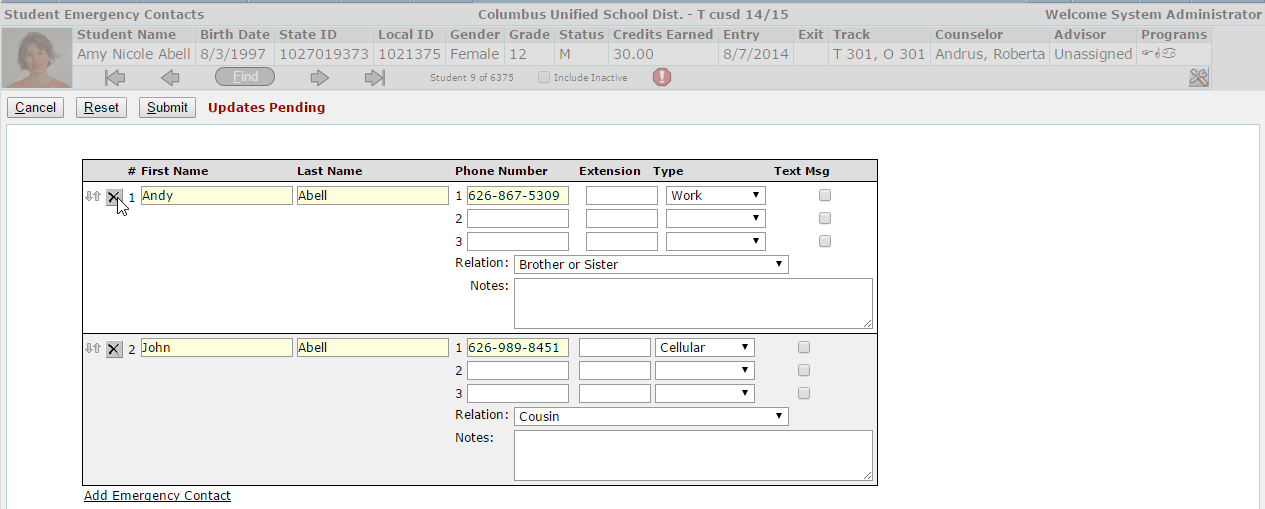
4. Click Submit to save your changes.
5. The contact will no longer appear in the list of Emergency Contacts for the student.