
The Q Interface Editor application allows for a district to change Database Field names and/or the labels used by an Application View within Q. In every application a district can create custom defined labels for fields which would allow a district to customize commonly referred labels to match what a districts users may be used to seeing.
Interface Editor is located under the System menu in Q.
- When launching the Interface Editor and selecting the tab ‘By Database Fields’ a drop down of all tables will be available. Select a table for which you want to replace the existing Field Name with your district’s choice of names.
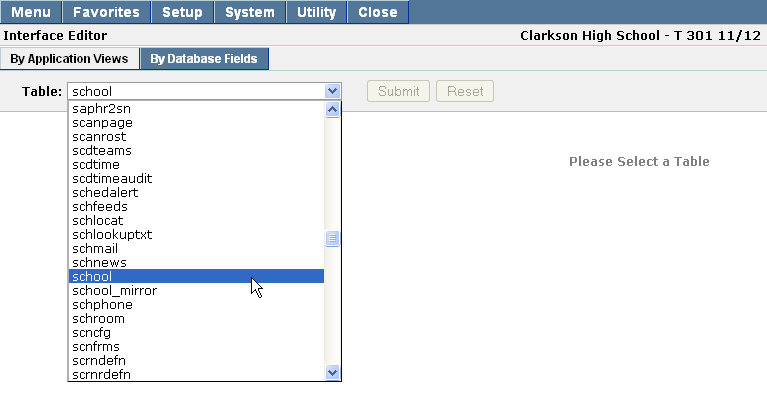
2. After selecting the desired table, all Field Names will provide users the ability to enter a replacement text. The Replacement Text entered will replace the previous field name label throughout the Q applications for all users who have permissions to access the application.
Note: When using the By Database Fields, the Field Name is the actual database field name and will usually have a description that is more user friendly. Before entering any Replacement Text it is suggested that someone identify what the existing user friendly description is for each database field to be changed. This will save time and effort due to the fact that many of the existing interface labels are already user friendly even though their field name labels may lack clarity (e.g. The School table has field names like schname and addr; however these fields already have user friendly descriptions of School Name and Address that are just not viewable in the By Database Fields display.)
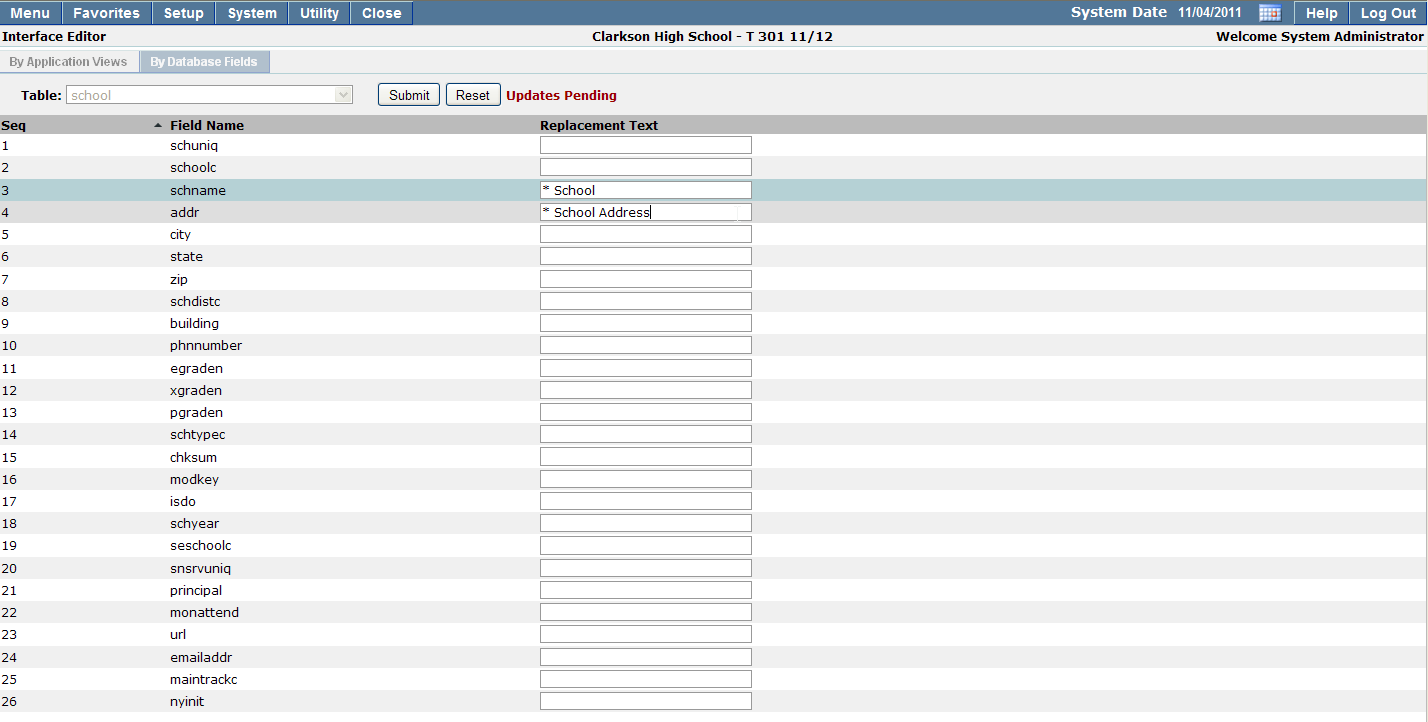
3. When the Replacement Text has been entered the user must move out of the text field before the Submit button will become enabled.
Note: Any new Replacement Text entered will not be seen by any users until the next time they log in to the Q Shell.
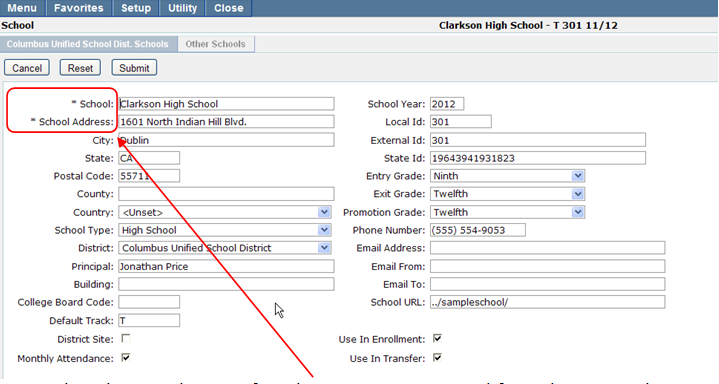
Screenshot above with view of Replacement Text entered from the By Database Fields.
- When launching the Interface Editor and selecting the Tab By Application Views a drop down of Applications will be available. Once the user selects a desired application the Views will be populated for all the various areas where the selected application may use Replacement text.
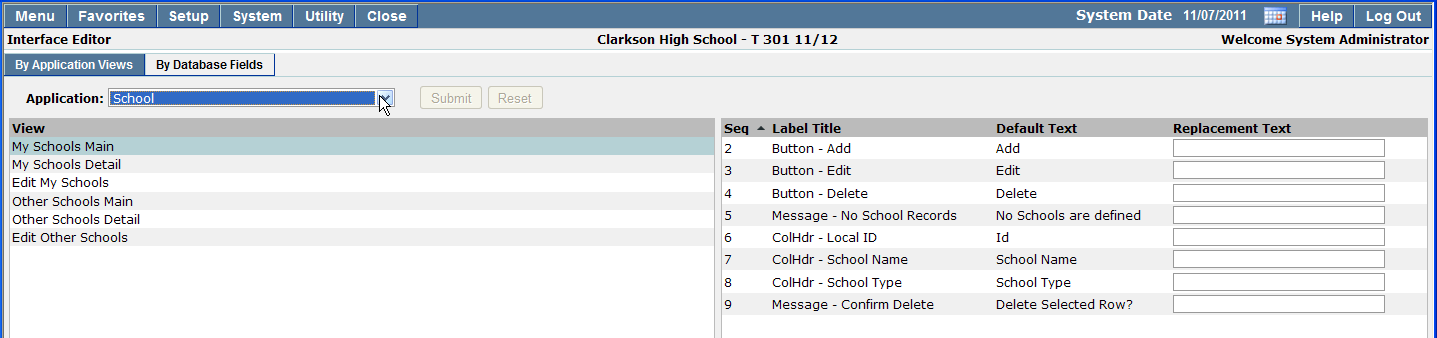
2. Each Application has various Views depending on the application. The Views are the different screens a user may see, such as the labels on the Main view, the labels in Edit mode, etc. Any Replacement Text that is entered from the By Application Views will override any Replacement Text entered from the By Database Fields.
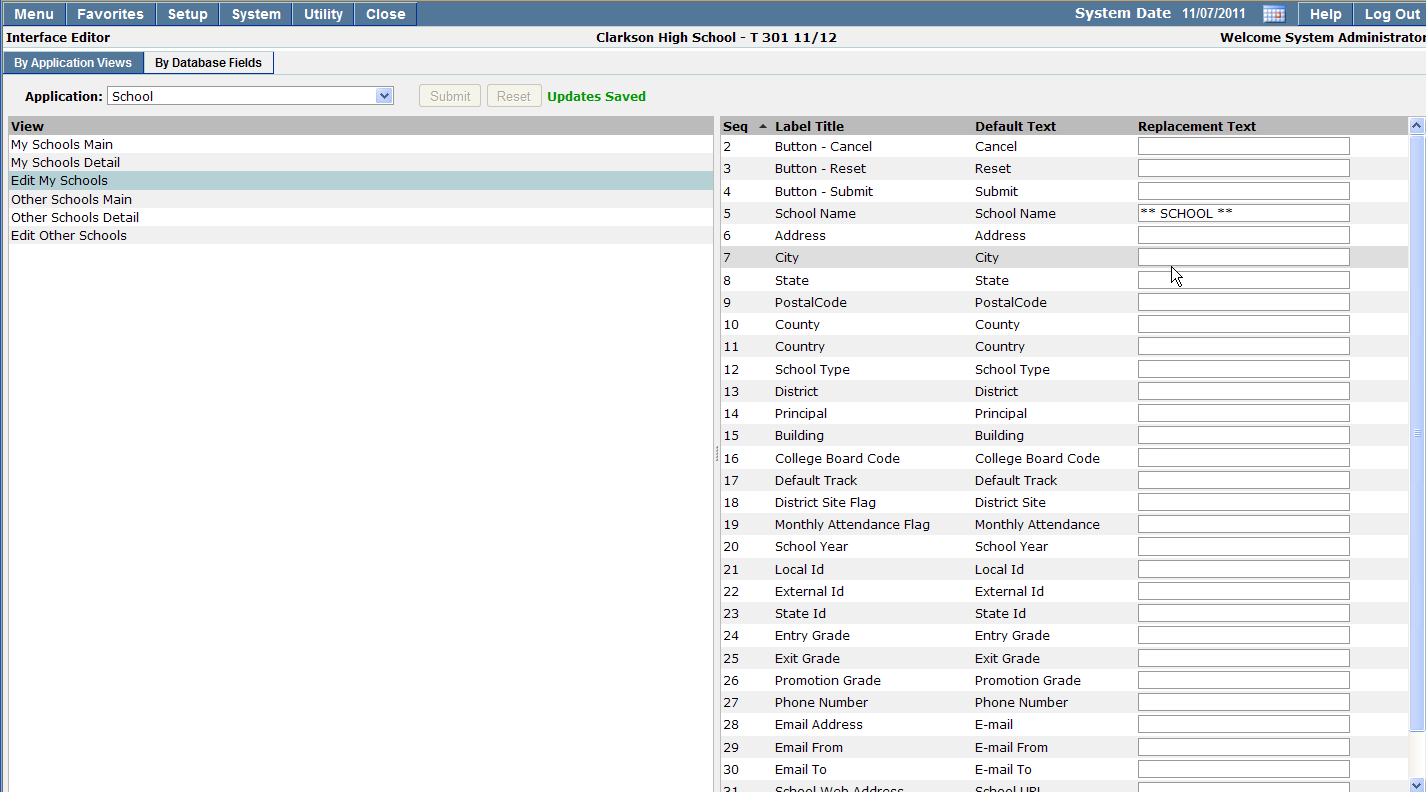
3. When the Replacement Text has been entered the user must move out of the text field before the Submit button will become enabled.
Note: Any new Replacement Text entered will not be seen by any users until the next time they log in to the Q Shell.
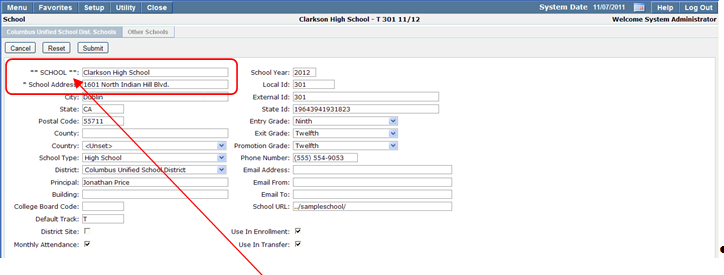
The screenshot above shows the ** SCHOOL ** label that was entered from the By Application View; that entry overrides the * School Replacement Text from the By Database Fields.
