The Q Image Loader application is designed to import ID photos of students or faculty members into Q, assigning them to the appropriate records for a specific school year. The photos can then be viewed in the corresponding student or staff banner application or by clicking the camera icon where available.
Image Loader is located under the System menu in Q.
The image files can be in JPG, JPEG, BMP, or GIF format and need to be in an accessible compressed or zip file.
The zip should only contain image files. Do not zip the folder that the images are in; select the actual image files and compress those.
School photographers typically prepare the image files. The name of each image file must be the same as the ID number of the student or faculty member so that the Image Load process can match the image to the corresponding demographic record.
From the Image Loader, select:
- Load Images for – Select whether you are loading Student or Staff images.
- School Year – Select the appropriate school year for the images being loaded.
- Replace image if one already exists – Check if you want the import to overwrite or replace an existing image.
- Image Zip File – Click Choose File button and navigate to the image file for import.
NOTE: The maximum zip file size is 150 MB. 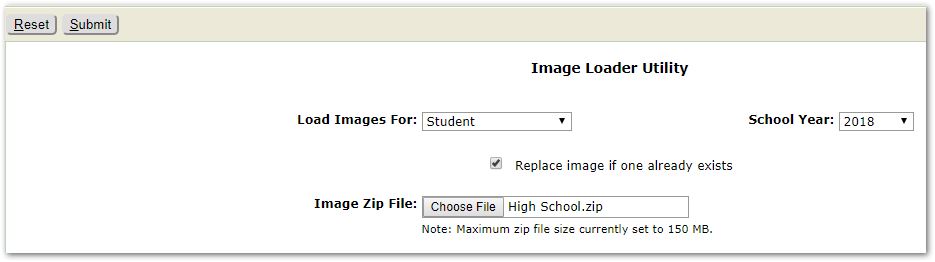
When ready to import the images, click Submit to process the file.
Loading can take a long time depending on the number of images to be processed. Image loading may be rerun as needed.
At the end of the load process, Image Loader Results will display a summary of files processed, successfully loaded, or failed. It will show the names of the failed files with a reason for the failure. You may print the results by clicking the Printer icon at top right.
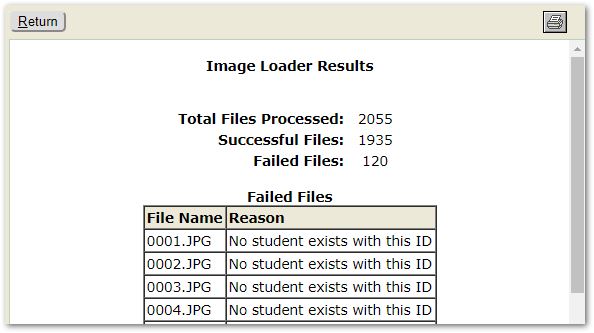
Click Return to return to the Image Load Utility screen.
To view student or staff images, you may use any student or staff banner application such as Student Editor, Student Profile or Staff Editor and either use Find dialog or scroll through the records.
A sample student image is shown:
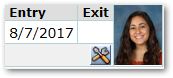
When no image is associated with the individual, users will see ‘Picture Not Available’ message.