
Q Grade Book Manager enables districts or school sites to configure District and/or School level settings for the Grade Book application. Grade book options, categories, grading scales, scoring options, and groups can be pre-defined by District or School level.
Grade Book Manager is located under the System menu in Q.
The Grade book manager provides users with the ability to create default settings for grade book users. Settings can be created for use at the District or School site level.
Note: The properties for District Settings can only be edited when the level is District.
The Setup Areas allows districts to select which Grade book application will be used throughout the district by school sites. Standard linking, term ending marks, and user preferences can be configured and be set as defaults for users.
District Settings
Districts settings can be configured and implemented for use within the QGrade book application.
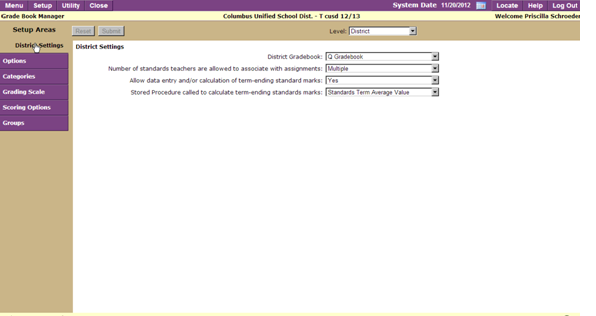
District Grade book: Select which version of the Grade book application will be used throughout the district. Enable the QGrade book application, or the legacy version of the grade book. The selection made here will be the default setting for all users with access to the Grade Book application, who have been assigned a class in the Master Schedule and have at least one student enrolled in that class.
Number of standards teachers are allowed to associate with assignments: Teachers can link multiple standards to assignments which they have created. The amount of standards available for linking will vary based on the option the district has chosen.
Allow data entry and/or calculation of term-ending standard marks: Choose to allow end of term entry and/or calculation of term-ending standard marks.
Stored Procedure called to calculate term-ending standard marks: Student Marks may be calculated using one of three stored procedures; Standards Term Average Value, Standards Term Maximum Value, and Standards Term Power Law Value. For more information regarding how marks are calculated, contact your IT department.
Options
Grade book users may configure how scores will be displayed, entered, and calculated in a class. To configure options, click the radio button for the option you would like to enable. The options available for selection will affect how a user can enter results, calculate student grades, missing assignment scores, and publish assignments to Student Profile and QParent Connect applications.
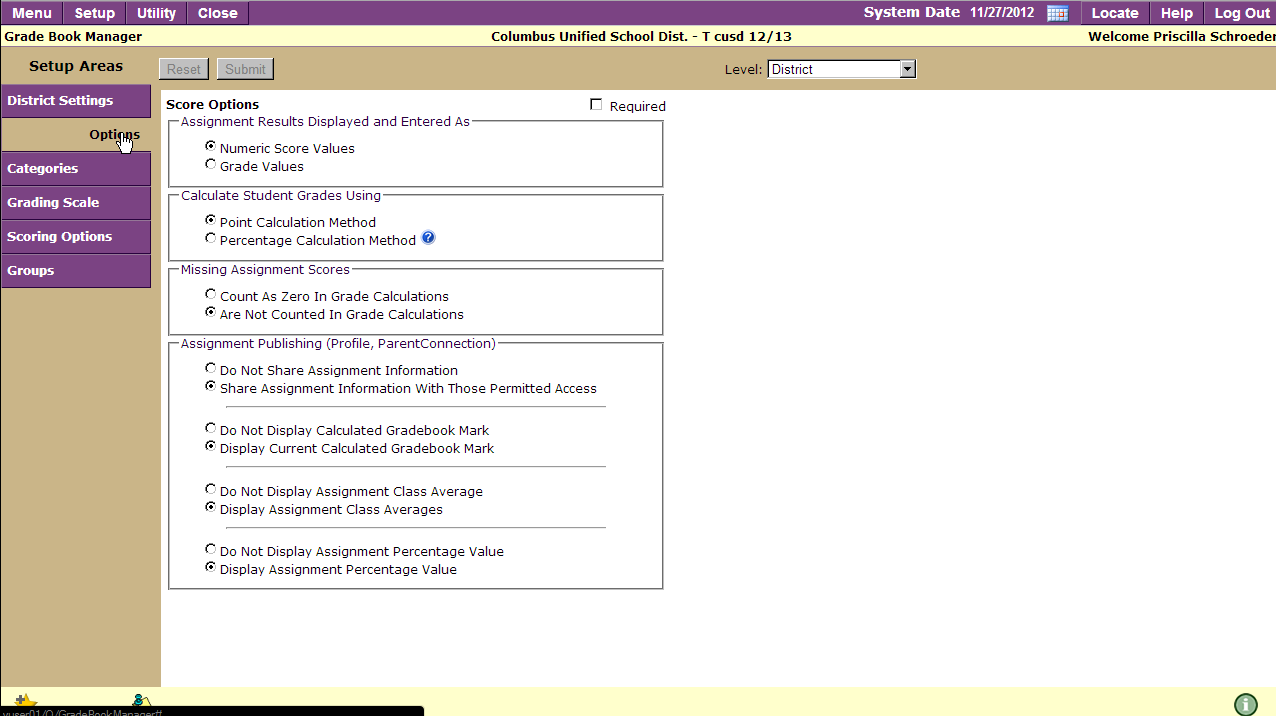
Assignment Results Displayed and Entered As:
Numeric Score Values: Displays grades which have been entered as numeric values.
Grade Values: To display and enter grades for assignments as letter values, select to display and enter marks as grade values. When a letter grade is used to enter a score, a percentage value is assigned to the letter grade for calculation purposes. The percentage value used for calculating grades will be the midpoint percentage value between the letter grade assigned and the next highest letter grade. The grade book application will take the midpoint percentage value between the letter grade awarded and the next highest letter grade for the purpose of calculating the grade to date and percentage to date. For example, if a grading scale has been created which awards an A = 90%, B = 80%, C 70%, etc., and a student receives a B on an assignment the grade book application will take a value of 85% which is midway between an 80% and a 90% for that assignment.
- Using Disproportionate Values: Letter grade values should be created using proportionate mark values. If the distance between the minimum percentage values for the letter grades in the scale is disproportionate, the final grade may be biased by the differences in the distances.
Note: Place a checkmark in the Required field to make your selections the default settings for Grade book users.
Calculate Student Grades Using
Point Calculation Method: The point calculation method will take all points received by a student and all points possible for the assignment and sum them together. The total points received by the student are then divided by the total points possible. The grade assigned is then based on the resulting percentage. If category weights are assigned, they would be used as multipliers when using the point calculation method.
Percentage Calculation Method: When grades for students are calculated using the percentage calculation method category weights indicate the relative percentage that each category should have on the final calculated grade. This provides the ability to specify the influence that any given category has on the calculated grade despite the number of points possible in that category. When using this method, points received within each category are divided by points possible for the category arriving at a category percentage. That result is then multiplied by the weight for the category divided by the sum of all category weights. The resulting percentages are then summed to arrive at the overall percentage for the term.
Missing Assignment Scores
- Count as Zero in Grade Calculations: This option will assign a value of zero (0) to missing assignments.
- Are Not Counted In Grade Calculations: Excludes missing assignments from student grade to date calculations.
Assignment Publishing
Assignment Publishing in the Student Profile and QParent Connection Applications enables teachers to set sharing preferences for assignments on a class by class basis.
Do Not Share Assignment Information: Assignment information will not be displayed in the student profile and Qparent connection applications.
Share Assignment Information with Those Permitted Access: Assignment information will be displayed in the student profile and Qparent connection application for users with access.
Do Not Display Calculated Grade book Mark: The student’s calculated grade book mark will not be displayed in the student profile and Qparent connect applications.
Display Current Calculated Grade book Mark: The student’s current calculated grade book mark will be displayed in the student profile and Qparent connect applications.
Calculated Marking Term to Display: Select the term you would like displayed when choosing to display a student’s calculated grade book mark in the student profile and Qparent connect applications. If this option is set to display the current calculated marking term, the term displayed will be based on the track term dates.
Note: Current term will be displayed by default unless the user selects a different term in the drop down list.
Do Not Display Assignment Class Average: Students assignment class average will not be displayed in the student profile and the Qparent connect application.
Display Assignment Class Averages: Students assignment class averages will be displayed in the student profile and the Qparent connect application.
Do Not Display Assignment Percentage Value: The percentage value of the assignment will not be displayed in the student profile and Qparent connect applications.
Display the Assignment Percentage Value: Assignment percentage values will be displayed in the student profile and Qparent connect applications.
Note: The points possible and points earned are displayed when the share assignments option is enabled.
Once all selections have been made, click Submit. To clear all selections, click Reset.
Categories
Grade book categories can be defined as assignment types such as projects, quizzes, tests, etc. There is no limit to the number of categories which can be created however; at least one category must be setup for each course. Districts may place a checkmark in the Required field. Enabling of the required field will make selections required by Grade book users.
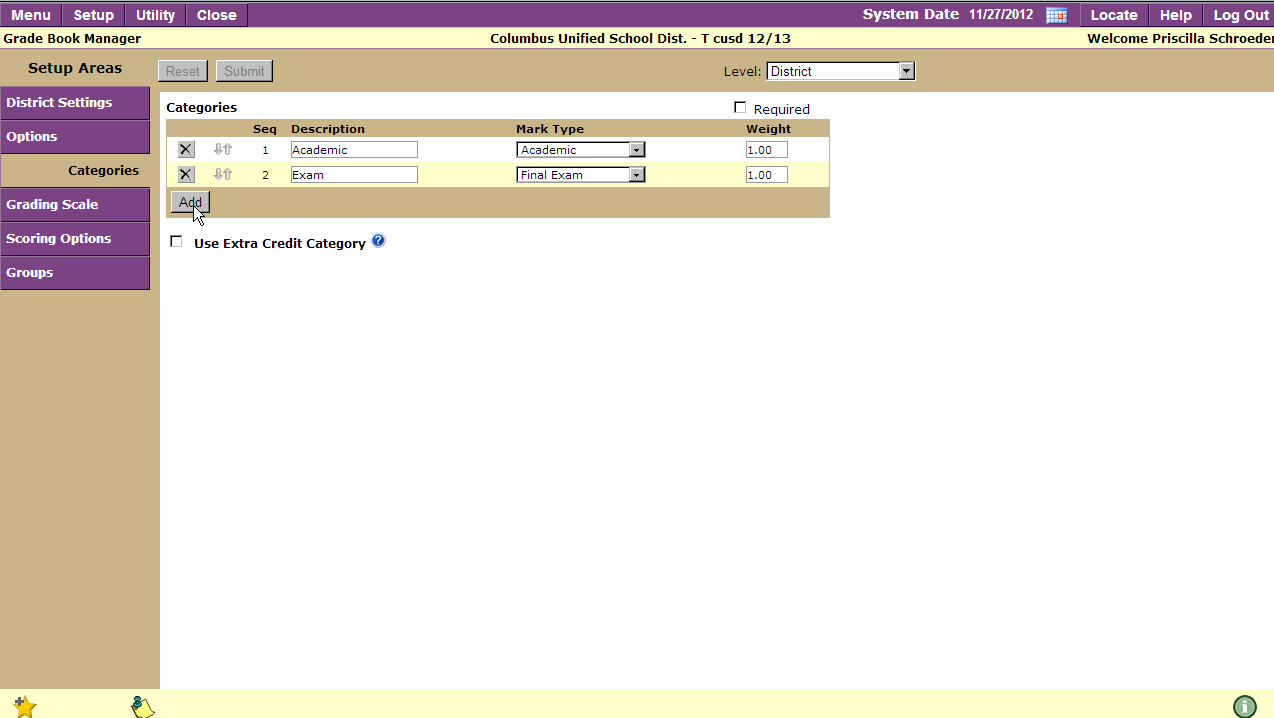
To create Categories:
- Click Add
- Enter the category description.
- Select the mark type you would like associated to the category.
- Optional: To tie a weight to the category, enter it in the weight column.
- Click Add to continue adding categories.
- Once all desired categories have been added, click Submit. To clear all changes made since the previous save click Reset, or click Cancel to return to the previous screen.
- Extra Credit Category
There are multiple ways to assign extra credit points to assignments.
- Extra Credit Assignment: When the assignment is created the extra credit flag can be set to on for the assignment. The extra credit flag, when turned on for any assignment, tells the grade calculation to include the points awarded to the student in the total points received without adding the points possible to the total points possible.
- Extra Credit Category: Teachers have the ability to define an extra credit category. All assignments in this category will be counted as extra credit added to the student’s calculated grade up to the specified maximum amount. This will have no effect on individual assignments flagged as extra credit that will be included in grade calculation with other categories.
How the Extra Credit Category Works
The extra credit category may be used to increase a student’s overall percentage for a given term up to the specified amount. After calculating the student’s percentage for the term using the grading method specified in class options, the number of points received in this category are divided by the number of points possible in this category. That value is then multiplied by the category weight (limit) and divided by 100. This result is added to the student’s calculated percentage to arrive at his/her final percentage for the term.
Grading Scale
At least one grading scale must be defined for each mark type. A separate scale with different cut off points can be set for students who meet modified instruction requirements. To set a district grading scale, click Required.
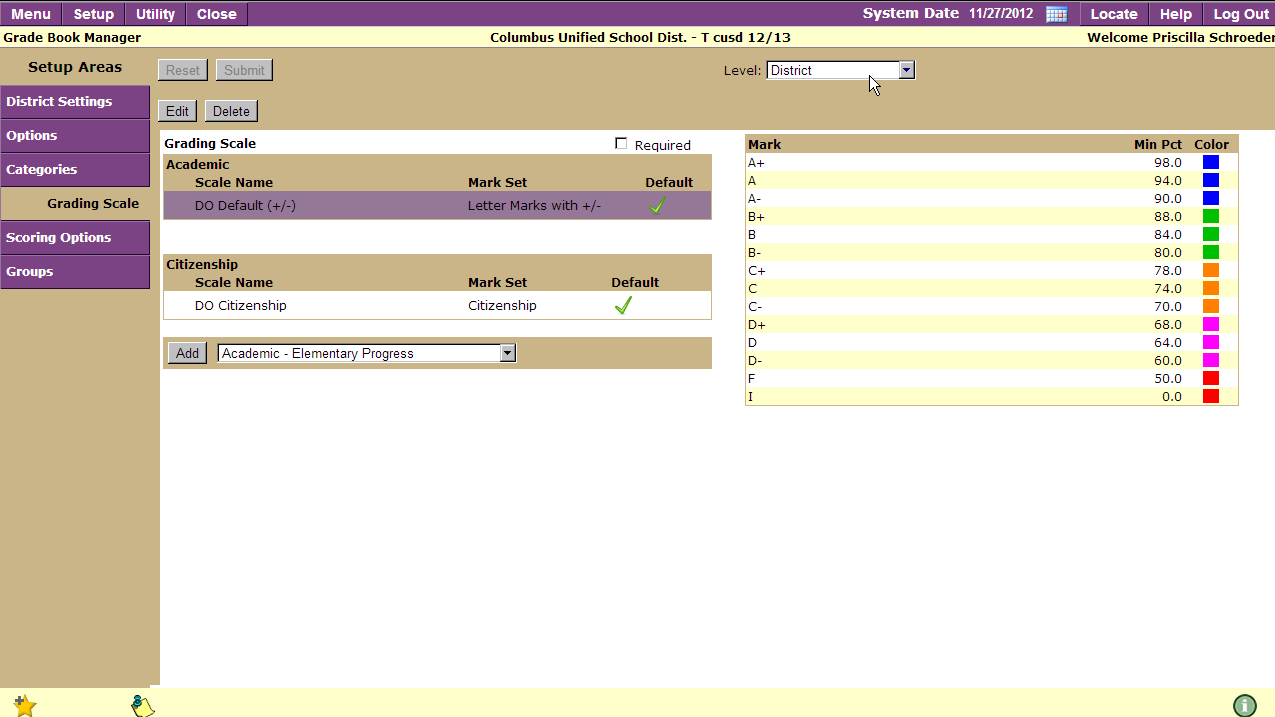
To add grading scales:
1. Click Add to create a new grading scale.
2. Enter a grading scale name which will help you easily identify your scale.
3. Enter the minimum value required to earn each mark in the Min Pct field as a whole number.
Note: The grade book does not round.
4. Each mark value can be associated to a specific font color by clicking in the color drop down list and selecting a color.
5. Users can associate grading scales to multiple courses. To attach a grading scale to another class, place a checkmark next to the term for which you like to associate the grading scale.
Note: All mark types which have been tied to a category must have a grading scale defined.
Click Submit to save your changes. To clear all changes made since the previous save click Reset, or click Cancel to return to the previous screen.
Scoring Options
Users can apply special circumstances to tasks. Descriptions are viewed on the tasks in the QParent Connection application. Colors can be viewed in the grade book spreadsheet tab. Districts have the option to create Scoring Options at the District level, or School level which would create default scoring options for grade book user. To flag Scoring Options as required, place a checkmark in the Required field.
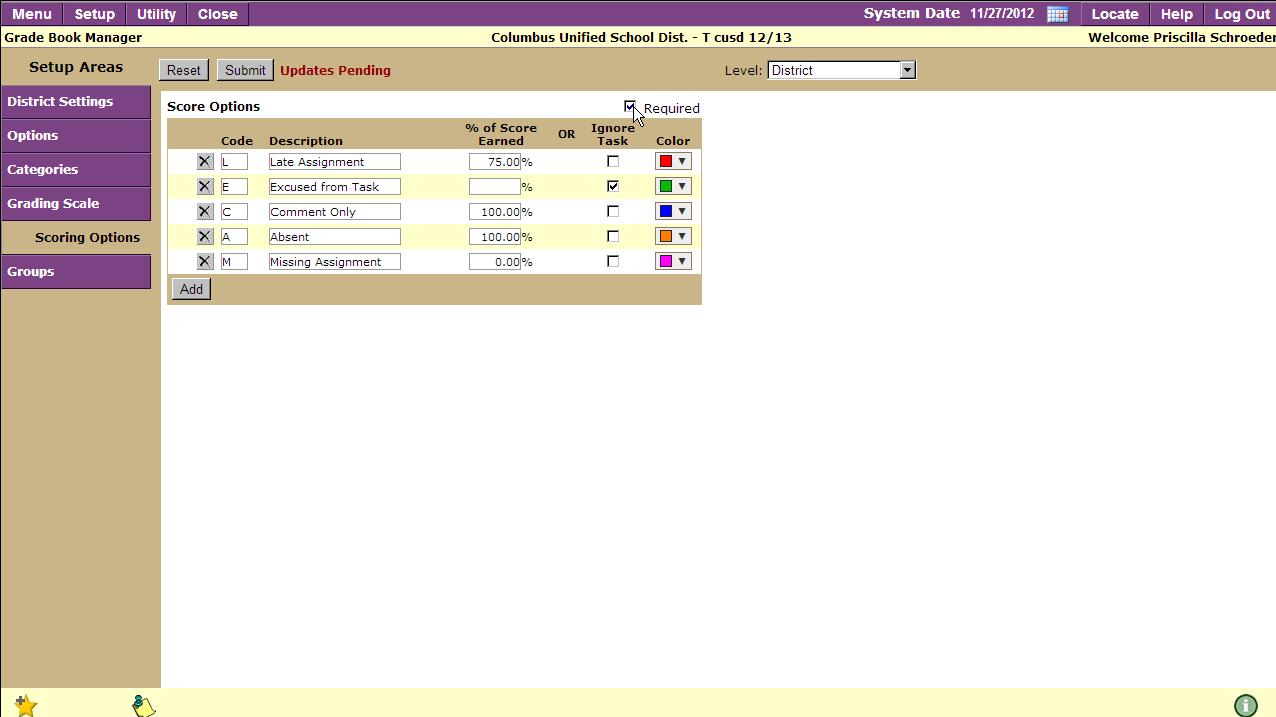
To create new scoring options:
- Click Add
- Enter a code and description.
- Select either the % of score earned which defines a different method which the grade book application will apply to calculate an entered score or choose to ignore the task. The ignore task option excludes the assignment in grade calculations.
- When you have completed your selections, click Submit.
Groups
Student groups can be created to easily identify, assign, or exclude students from specific tasks.
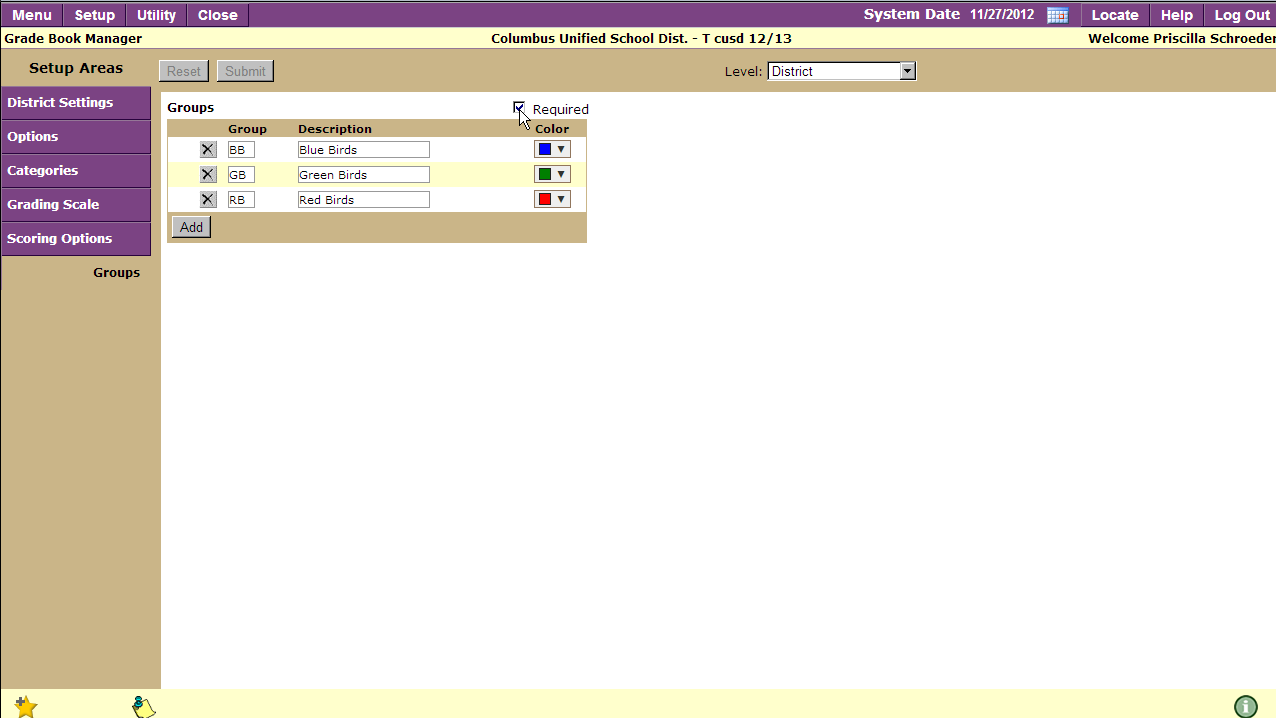
- To create Required Groups, click Required located near the top of the page.
- Click Add
- Enter a group code.
- Enter a group description.
- Select a unique color which will enable you to identify each group.
- To apply the newly created group to multiple courses, place a checkmark next to the corresponding course name.
- Click Submit to save your changes. To clear all changes made since the previous save click Reset, or click Cancel to return to the previous screen.
