
Q Electronic Records Transfer is a way of facilitating student information exchange between school districts using Q. All information is sent to a clearing house and is then forwarded to the requesting district. Data from the following areas may be transferred: Demographics, Contacts, Transcript, Tests, Enrollment, Programs, Behavior, Schedule, Marks, Health and Special Ed. Three of these areas, Transcript, Tests and Enrollment History can be imported directly into the receiving districts database. All other areas can be viewed or printed. All transferred data is encrypted and secure handshaking is enabled to ensure that the information remains secure.
Electronic Records Transfer is located under the System menu in Q
A separate technical document is available in Help Technical Guide with set up information for the components that need to be installed on the servers before the ERT application is available for use.
There is only one permission item for Electronic Records Transfer, users who are given Electronic Records Transfer have full privileges for the application at either the school or district level.
Once the initial server configuration is complete there are some additional configuration steps to complete in Q.
The Electronic Records Transfer process needs to know who the ERT Responsible parties are. When a new records transfer request is received, a notification is sent to the responsible parties. The notification recipients must be configured in the Q Notification Editor.
To configure the notification:
- Launch the Notification Editor located in the Q System Menu.
- Select the notification code: ERTNotif.
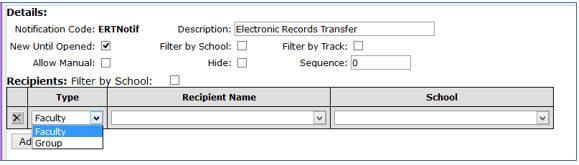
- Click Edit.
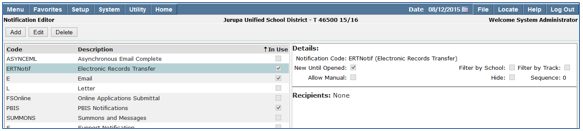
- Individual Faculty Members and/or Groups may be entered to receive notifications.
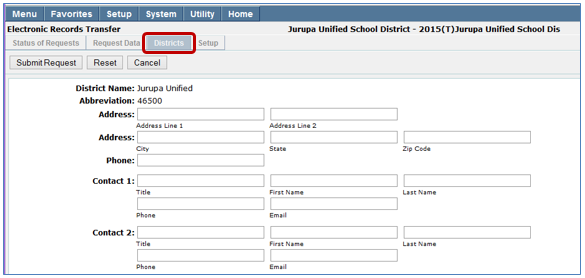
Within the Electronic Records Transfer application there are two additional areas that may be configured; district information and default data areas to send and receive.
To configure the district information:
- Navigate to the Districts tab in Electronic Records Transfer.
- The Edit button will be enabled for your own district, but not for other districts.
- Enter your district’s address, phone number and contacts. The contact people listed are should be the people who can answer questions regarding data transfer. It is not necessary that they be the same people listed in notifications but in most cases it will be the same person(s) handling all ERT information.
Default data areas to send and to receive may be defined. This configuration is also done within the Electronic Records Transfer application.
To configure these defaults:
- Launch the Electronic Records Application.
- Click on the Setup Tab.
- Select default data items to include with requests and when sending by placing a checkmark in the appropriate column. These defaults may be overridden when requesting and/or sending data.
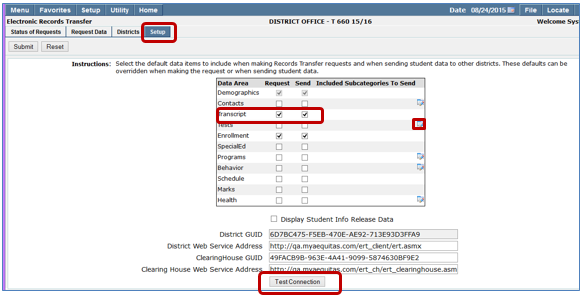
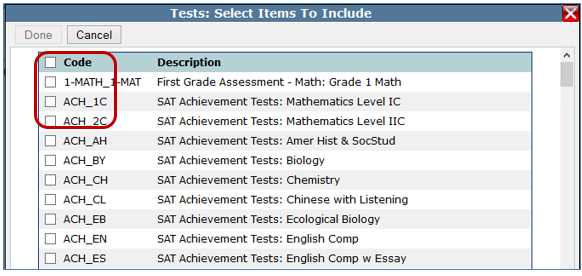
- For several of the data areas (Contacts, Tests, Programs, Behavior, and Health), you can configure which subcategories of data to send. For example, in the tests area, you could configure the program to only send data for specific test types.
- To access these subcategories click the notepad icon to display the available choices.
- Select items to include by placing a check next to the desired item. Checking the Code box at the top will select all items.
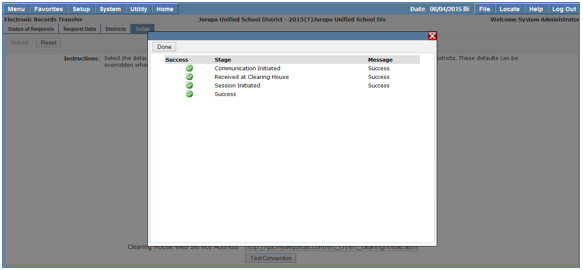
When the configuration has been completed, users can run the ‘Test Connection’ on the setup page to see if the services are running.
When Electronic Records Transfer is initially launched all existing requests for Incoming Students and requests for Departing Students are displayed. Detailed information on these requests displays on the right hand side of the screen when the student name is highlighted.
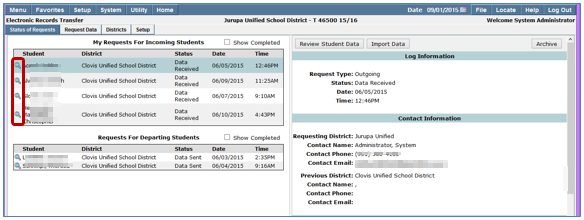
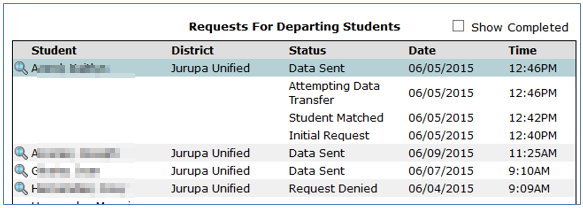
The status column shows the current status of the request. In order to see all details of the status, click the magnifying glass.

Once data is received, shows as ‘Sent’ (from the district sending the data. At the district receiving the data it will say Data Received.)
Step 3 — Initiating Requests for Student Data
When you are requesting data from another district for a student, the student must already be enrolled in your database.
To create a request:
- Click the Request Data tab.
- Click Find Student.
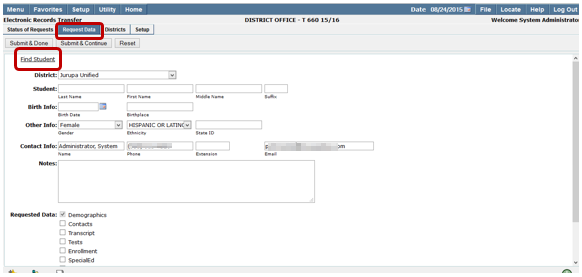
- Enter the search criteria to find the student.
- Select student name from search results.
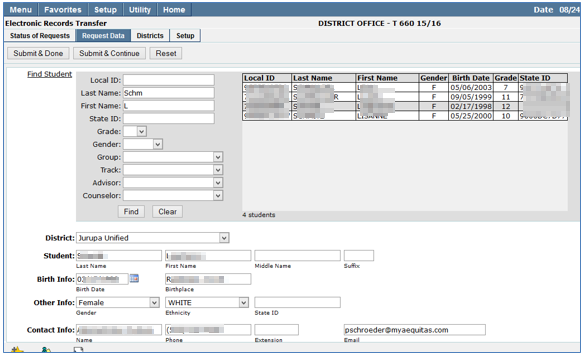
- Select the data you’re requesting.
- If default areas were defined during configuration they will already be checked, you may remove checks or add additional areas to the default selections.
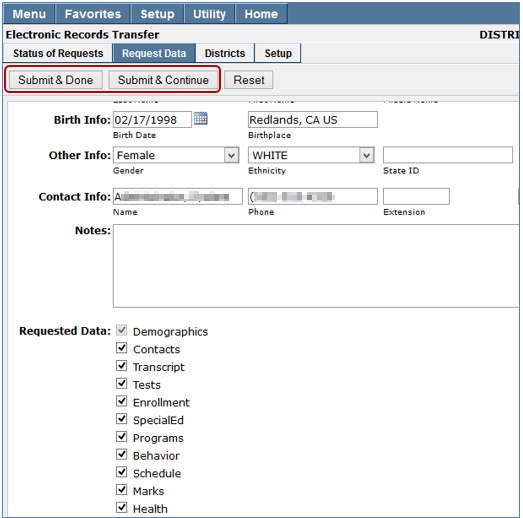
- Select: Submit and Continue if you have additional students to request.
- Select: Submit and Done if this is the only student.
- Sit back and wait for the district to respond.
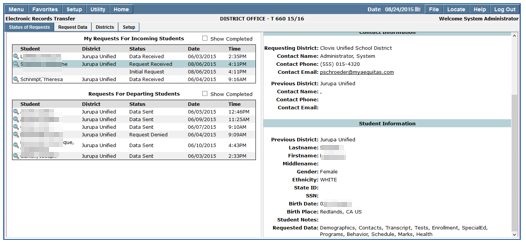
The district receiving the request will see the requested student name on their list of Requests for Departing Students. Once a request is received the district must match the student and decide what information to send.
The Sending District can send more data than was requested. The user can override the flags and send you more than requested. The default is to send what was asked for, minus areas that are defaulted not to be sent by the sending district.
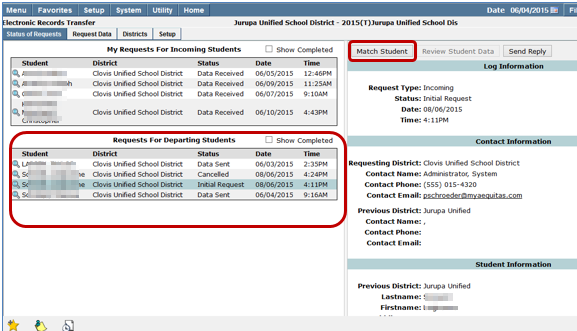
To respond to a request:
- Click on the student name then go to match student.
- A listing of potential matches displays.
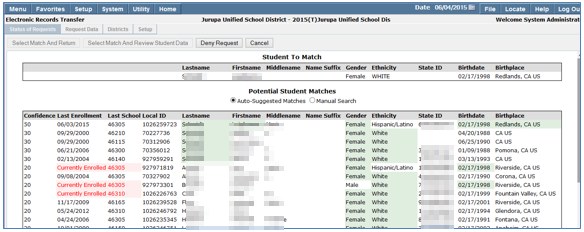
- If the student being requested is still enrolled in your district they will show up as red.
- If you don’t see the student in the auto suggested matches you may do a manual search.
- Select the student name and decide:
- Select match and Return.
- Select Match and Review Student Data.
- Deny Request.
- Cancel.

If you click Select Match and Review Student Data a profile like screen opens allowing you to verify it’s the same student and select which data to send.
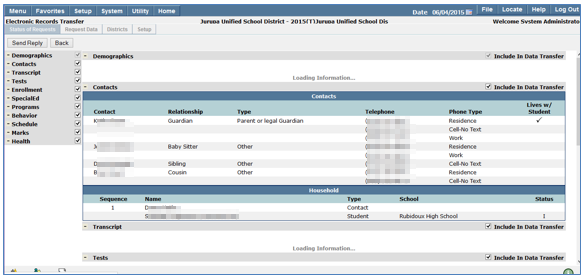
When you’re sure it’s a match, send a reply to the requesting district.

- Click Send Reply
- Request Approved.
- Unable to Identify Student.
- Student Still Enrolled.
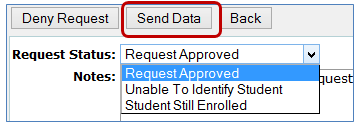
When Send Data is selected:
- There is an option to add a note.
- You may also look at the XML Data.
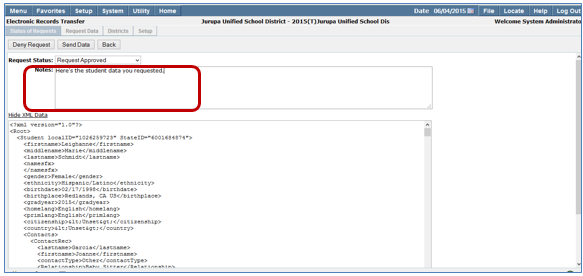
- When you choose to send data, the data transfers right away.
- The requested student’s status changes. You can expand the magnifying glass to see the status of the request.

Once a student’s data has been sent, you may choose to Archive the request. To archive a request:
- Select the requested student name and click Archive.
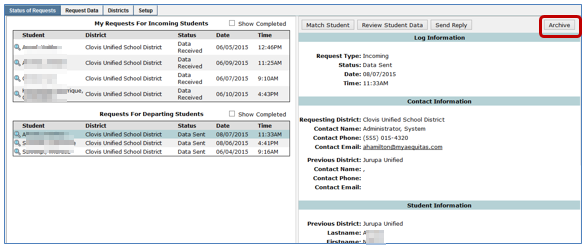
- Archive indicates the request is complete and the buttons become disabled.
- If you later decide that you need to send the information again, you can uncheck ‘Complete’ flag and re-activate the buttons.
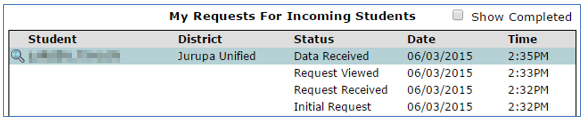
When the receiving district logs in to Electronic Records Transfer a screen displaying their requests for incoming students appears. Clicking on the student name will display more information on the right hand side.
Clicking the magnifying glass displays the history of the request.
To import the received data:
- Click the student’s name from the request list.
- Click Review Student Data tab on the right hand side.

Once the review Student Data button is clicked a screen showing all of the data sent for the student displays in a student profile format. This data may be printed by clicking the printer icon Print Student Data.
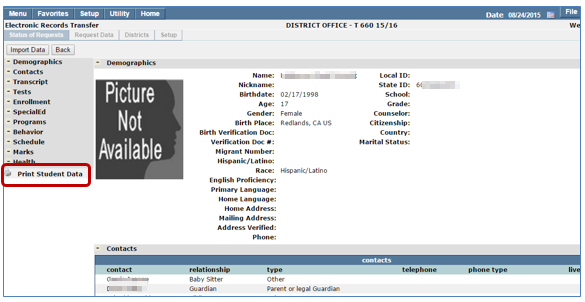
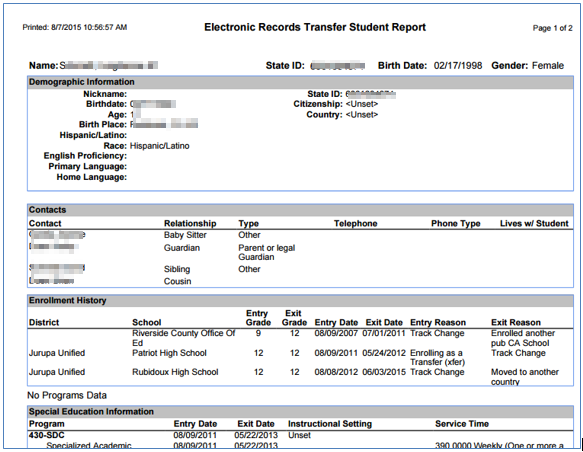
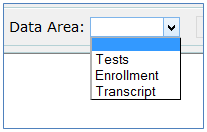
Once the information has been reviewed the user can pick and choose what they’d like to import. Click the Import Data button. There are three data areas that may be imported directly to the receiving district’s database: Enrollment, Testing and Transcripts.
There are two sections to the screen which are independently scrollable. When importing enrollment records only two records may be imported at a time. Tests may be imported five at a time and transcripts one at a time. If you don’t want to scroll through all the records you can click the summary button to see a report.
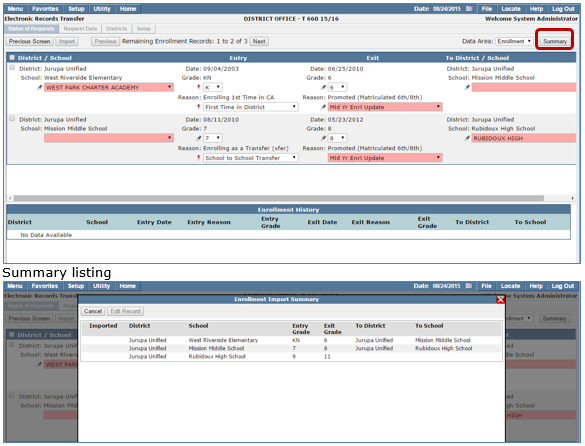
Enrollment
When importing records received from another district the data fields need to be mapped to corresponding fields in your database. When importing enrollment records the schools listed from the sending district must be added to the receiving district’s seschools in order to import the record. In the example below Grade: ‘K’ has been mapped to ‘KN’ for Kindergarten and the enrollment entry and exit codes have all been mapped. Once data fields have been mapped, click the pushpin to retain the mapping for all subsequent data transfers from the same sending district.
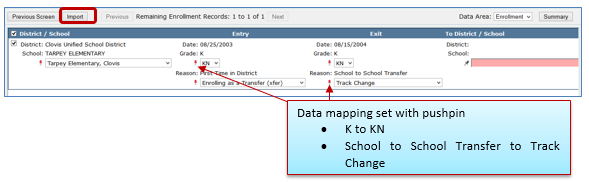
When the mapping is completed, click Import to import the record.
Tests
When importing tests the data fields for Test, Grade and Score Type may be mapped and pinned to retain mapping for subsequent imports from the same sending district. Five tests may be imported at one time. To view a listing of all available tests for import, click the summary button.
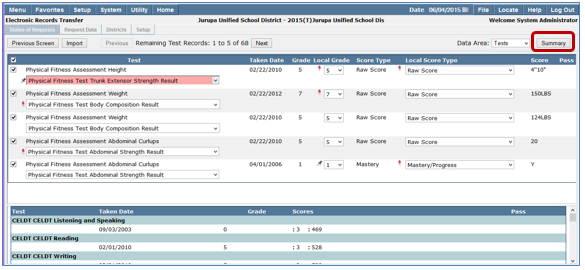
When the mapping is completed, click Import to import the record.
Transcripts
Only one transcript record may be imported at a time. When importing transcript data the mark set must be selected from the receiving school, mark sets are not included with the sent data.
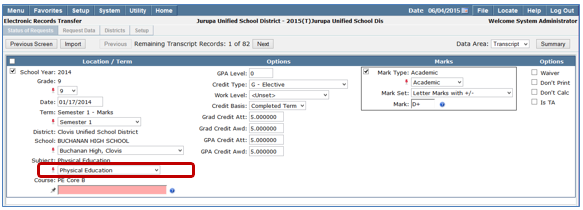
The course name from the sending district is listed. To select a corresponding course from the receiving school’s course list, click the blue ? Icon. Once the course is selected it may be pinned to retain the mapping for subsequent data imports from the same sending district.
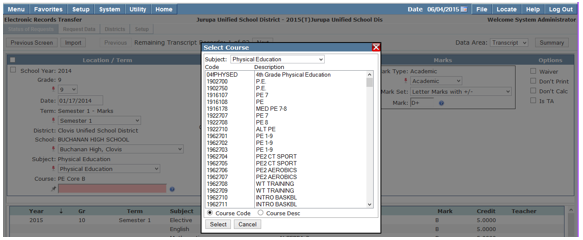
When the mapping is completed, click Import to import the record.
Components
Clearing House – The clearing house is used to facilitate communication between participating districts. The Clearing House consists of a web service and a database. The database stores the following information about the participating districts:
- Contact information for those responsible for data transfers at a district
- The web address of each participating district’s web service
- The name of the ‘connect’ file used to by a district’s web service to connect to the district’s database
- The District GUID which uniquely identifies a district
- The Session GUID which uniquely identifies each communication session (newly generated for communication session)
- A time stamp used during a communication session to timeout the session
Note: No student information is stored in the Clearing House database.
Client Web Service – Each participating district must have access to a Client Web Service to facilitate handshake communication with the Clearing House, and to receive requests and student data from the Clearing House. Each district may run its own Client Web Service, or may use a shared Client Web Service. The Client Web Service must have access to a district’s database. Database connection information is stored in encrypted ‘connect’ files stored on the Client Web Service.
The district’s Client Web Service can be run on the same web server as Q, or on a different one.
Client Front End Application – For Aequitas Solutions customers, the Client Application is included in the most recent versions of Q and is called Electronic Records Transfer. The Client Application is used by a user for the following functions:
- Configure predefined data areas to be sent and received
- Initiate requests for student data that have enrolled in their district
- Review requests from other districts for students who have left their district, and optionally match that request with a student and electronically send the selected student data
- Review and import student data received from other districts
Installation
Clearing House - The Clearing House is a web service that must be installed on your web server in Internet Information Services (IIS) Manager.
First, copy the Clearing House application files onto your web server. In the following example, we copied the files to C:\ERT\ERT_ClearingHouse on the Web server.
Next, run the IIS Manager from the web server. Your IIS home page may look something like the following:
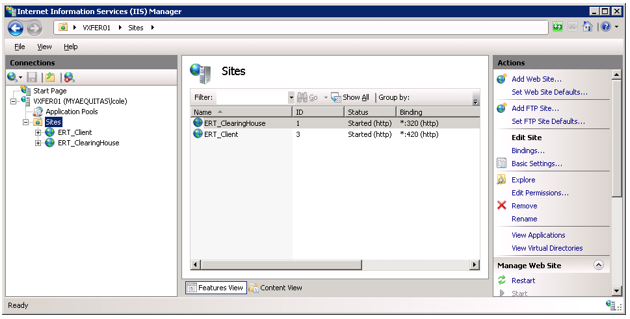
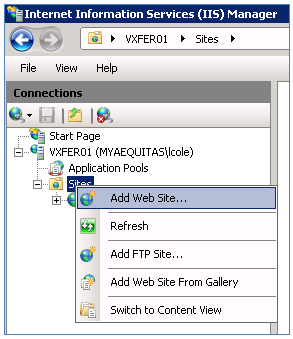
In IIS, one or more servers will be listed, with sites available on each server. To add the web service, click on the parent node where you want to add the server, then right click and select Add Web Site.
You will then see the following popup dialog:
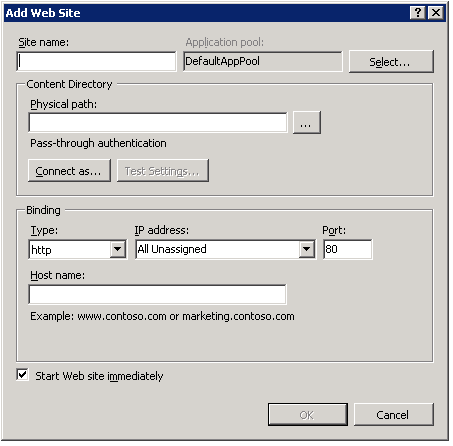
Give the site a Site name. In our example we used ERT_ClearingHouse. Select an Application pool by clicking on the Select button next to the Application pool edit box. The following popup dialog will appear:
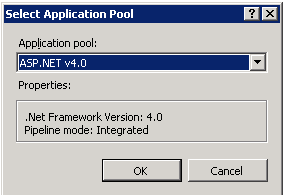
Select the ASP.NET v4.0 application pool from this dialog and click OK
Next, enter the Physical Path where you installed the service, in our sample case, C:\ERT\ERT_ClearingHouse. Next enter the Type, IP Address, and Port. Although most clients will be running the service in https, for this example we selected http for simplicity, and selected port 320.
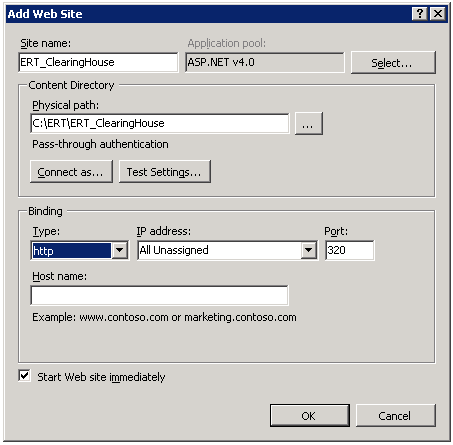
Click on OK to complete the process.
In the right bar in the IIS Manager, click Restart to restart the web server. You can run a basic test from a browser on a client machine to see if the web service is running. From an Internet Browser, enter the path of the web service, followed by a colon (:) and the port number and ‘\ert_clearinghouse.asmx.’ For example in the sample shown above, our server is vXfer01, so we can test to see if the service is exposed by typing the following path into a browser on a computer on the internet:
http://vXfer01:320/ert_clearinghouse.asmx
If this test is not initially successful, try running this test from the web server by opening a browser on the web server and trying the following address (using the values from our sample setup):
http://localhost:320/ert_clearinghouse.asmx
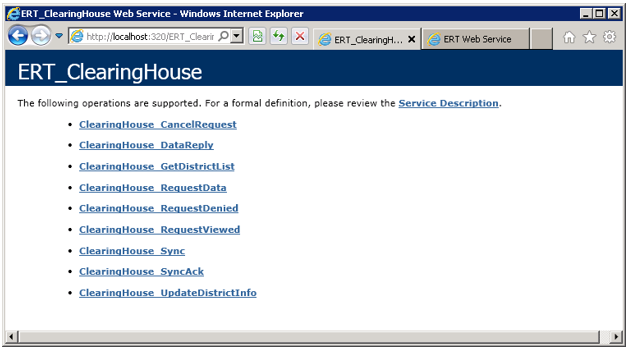
If the service is available, you should see the following page:
Client Web Service – The Client Web Service is a web service that must be installed on your web server in Internet Information Services (IIS) Manager. As mentioned above in the components segment of this document, the Client Web Service needs to access your district database. The database does not need to be on the same server as the web service, but just keep in mind that the servers will need to communicate.
First, copy the web service application files onto your server. In the following example, we copied the files to C:\ERT\ERT_Client on the Web server.
Next, run the IIS Manager from the web server. Your IIS home page may look something like the following:
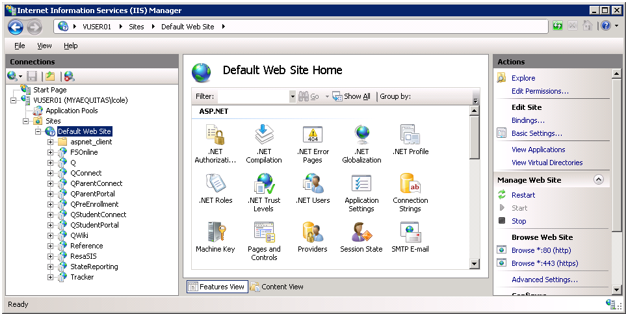
In IIS, one or more servers will be listed, with sites available on each server.
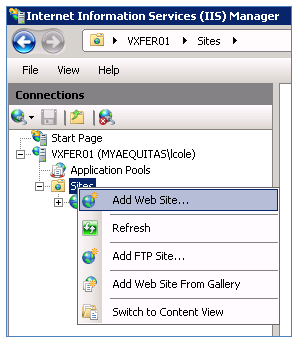
To add the service, click on the parent node where you want to add the server, then right click and select Add Web Site. You will then see the following popup dialog:
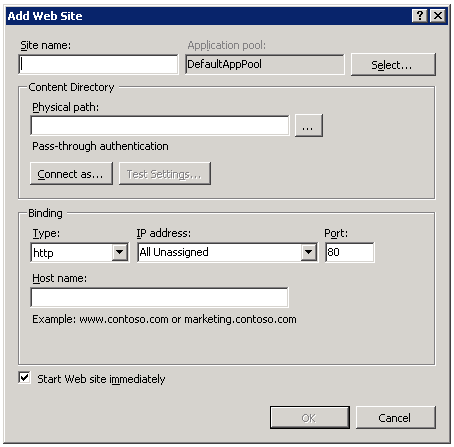
Give the site a Site name. In our example we use ERT_Client. Select an Application pool by clicking on the Select button next to the Application pool edit box. The following popup dialog will appear:
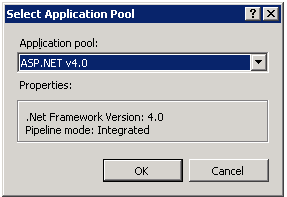
Select the ASP.NET v4.0 application pool from this dialog and click OK.
Next, enter the Physical Path where you installed the service. In our example we used C:\ERT\ERT_Client.
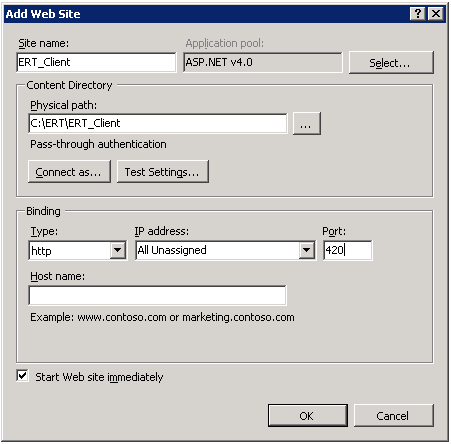
Select the binding for the site. For simplicity in this sample we used http with a port of 420.
Click on OK to complete the process.
In the right bar in the IIS Manager, click Restart to restart the web server. You can run a basic test from a browser on a client machine to see if the Web Service is running. From an Internet Browser, enter the path of the web service, followed by a colon (:) and the port and \ert.asmx. For example in the sample shown above, our server is vUser01, so we can test to see if the service is exposed by typing the following path into a browser on a computer on the internet:
http://vUser01:420/ert.asmx
To test on the web server itself, you could also use the following address:
http://localhost:420/ert.asmx
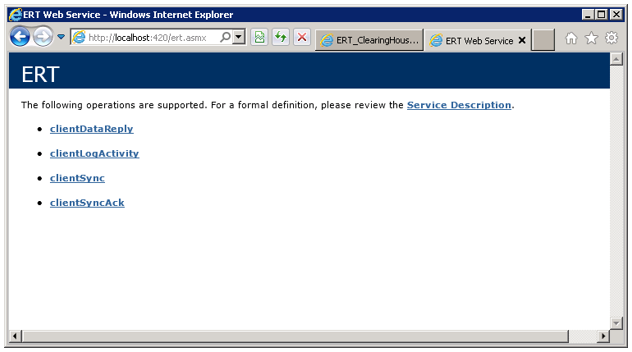
If the service is available, you should see the following page:
Configuration
Clearing House Database – The clearing house needs a MS-SQL database which can be accessed by the Clearing House web service. Create a database for the Clearing House on your database server and keep note of the database server name, the database name, the user log in and user password for configuration of the web service.
Run the SQL scripts found in the ERT_ClearingHouse\SQL folder. These scripts create the necessary tables and stored procedures that will be called from the Clearing House Server.
One of the tables the scripts will create is called ERT_DistrictList. This table will be used to store information about the districts participating in the ERT program. The table also has an entry for the Clearing House, whose stateID is set to ‘9999999999.’
There is currently no front end user interface for modifying this table, so it will have to be done using a tool such as SQL Server Management Studio to edit the table directly.
Clearing House Web Service – The clearing house web service should be set up and configured next. Take note of the web address of the Clearing House, as the participating districts will need to enter this information into their Q ERT end-user application.
Additionally, you must tell the web service application how to access the Clearing House database. In the web service application directory on your web server, there is a folder called App_Data. In that folder you should have an executable file called AEConnect.exe. Launch that application:
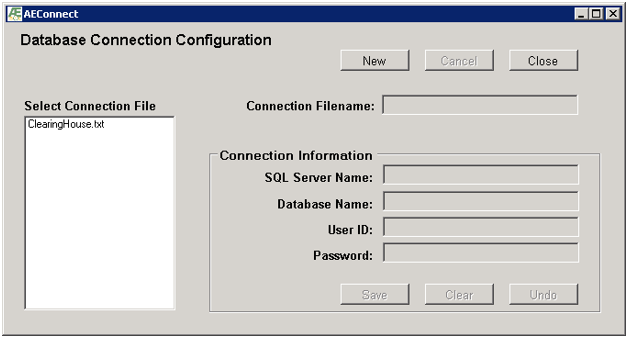
If there is a file called ClearingHouse.txt in the Select Connection File list box, click on it. If not, click on the New button and enter the text ClearingHouse.txt in the Connection Filename edit box.
For the database that you set up for the Clearing House, enter the name of the SQL Server where this database is located, the database name, the user ID and the user’s password in the appropriate fields and click Save.
ERT Client Web Service – After the Client Web service has been installed as described in the Installation section of this document, you will need to configure the application so it know how to access the client database.
In the web service application directory on your web server, there is a folder called App_Data. In that folder you should have an executable file called AEConnect.exe. Launch that application:
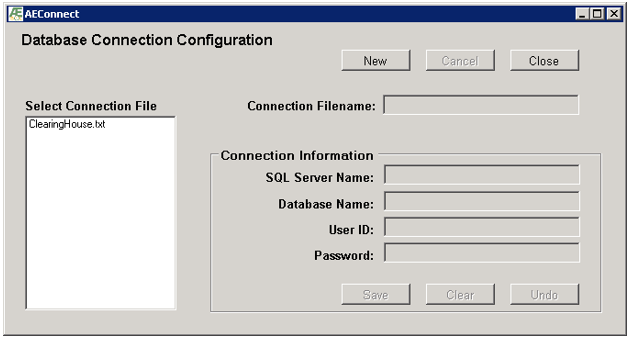
Click on the New button and enter a name of your choosing in the Connection Filename edit box (note the name must have the .txt extension). As a small security feature, it would be better to use a password – like name rather than the name ‘connect.txt’ or the abbreviated name of your district. Take note of the name, however as this is information that you will need to provide to the administrator of the Clearing House.
For the database that you set up for the Clearing House, enter the name of the SQL Server where this database is located, the database name, the user ID and the user’s password in the appropriate fields and click Save.
If you a running the service on you web service for multiple districts, create a connection file for each of the districts’ databases.
Q Electronic Records Transfer End-User Application – When you install the most recent version of Q, the ERT SQL scripts are run against the District’s database. Assign permissions to designated users of this application. The remaining configuration is performed in the Electronic Records Transfer Application, and will require communication with the Clearing House Administrator.
Launch Q and navigate to the Electronic Records Application. Click on the Setup Tab. In the Setup Screen, you have the option to set defaults of which data areas to send and receive by default. The data areas to send can be modified prior to sending student data. The data areas that can be sent and received are:
- Demographics
- Contacts
- Transcript
- Tests
- Enrollment
- Programs
- Behavior
- Schedule
- Marks
- Health
- SpecialEd
Three of the areas sent from one district to another, Transcript, Tests and Enrollment History can be imported directly into the receiving districts database (with proper code mapping). All other areas that are sent to a district can be viewed or printed.
For several of the data areas (Contacts, Tests, Programs, Behavior, and Health), you can configure which subcategories of data to send. For example, in the tests area, you could configure the program to only send data for specific test types.
The other critical step in the configuration is to exchange information with the Clearing House administrator so that you can communicate with the Clearing House. You will need the following pieces of information for that conversation:
- District Name
- District Abbreviation
- District State ID
- The District GUID from the Q ERT Application Setup tab.
- The web address of the District’s ERT Client Service
- The name of the ‘connect’ file in the district’s ERT_Client\App_Data folder that points to their district database
When you contact the Clearing House Administrator with this information, they will provide you with the address of the Clearing House web service address. Type this address into the field of the same name on the Setup Screen. After the Clearing House administrator has entered the information that you have given, click on the ‘Test Connection’ button under the Web Service Address field. A window will display the stages in testing the communication between your district, the Clearing House web service, and back to your web service.
After the communication test is successful, you will also need to enter contact information for your district and update the list of participating districts. This is done from the Districts Tab in the Q Electronic Records Transfer application. Select your district from the district and click the Edit button. Fill in the contact information then click the Submit button. This will save the data in your database, and attempt to contact the Clearing House to update your information at the Clearing House.
Click on the ‘Update Districts’ button to get the most recent list of districts participating in the ERT program. The Update process is done automatically upon launch of the ERT application, so you will not have to manually update the District List every time you use the ERT application.
