The Student Accommodations application is a student banner application used to assign the accommodations established for students and provide the ability to log or review the log of accommodations provided.
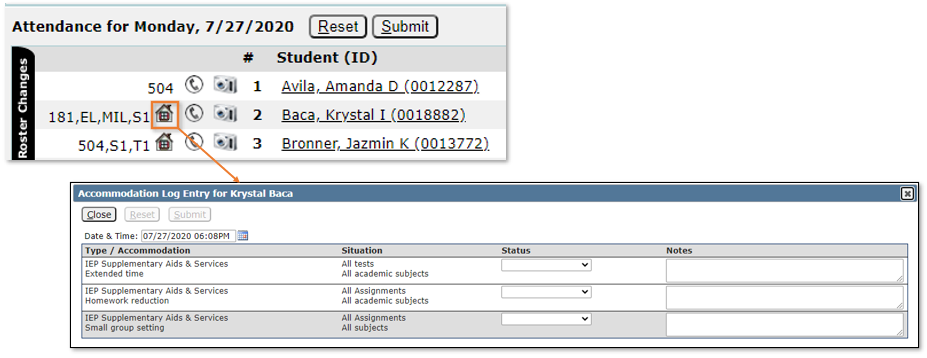
When accommodations are assigned to a student, they may be identified and accessed by teachers in Class Banner applications, such as Class Attendance, Class Engagement and Grade Book, using the Accommodations icon on either the Roster or Seating Chart pages. Teachers may click the icon and log accommodations for the student for each class, each day, as needed.
Student Accommodations is located under the Programs menu in Q.
Student Accommodations is a Student Banner application. For more information on selecting students or working with the Student Banner see the related documentation.
When the student is selected, the application has two tabs: Assignment and Logging. Each is available based on permissions. The Assignment tab is used to assign accommodations to a student, typically based on a governing plan such as an IEP or 504 Plan. The Logging tab is used to view, add, or manage log entries for assigned accommodations.
Click Add to create an Accommodation for a student.
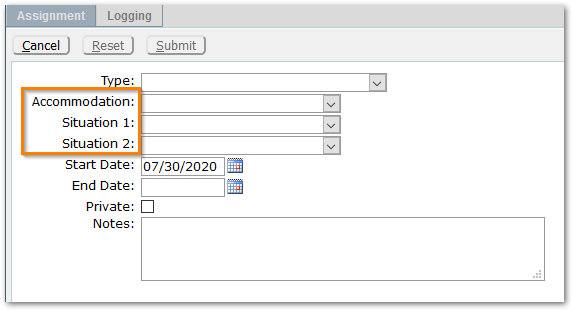
Each district configures Accommodations, and may define specific labels for ‘Accommodation’, ‘Situation 1’ and ‘Situation 2’ based on the Type. They may also opt not to include one or both of the ‘Situation’ fields.
Select a Type.
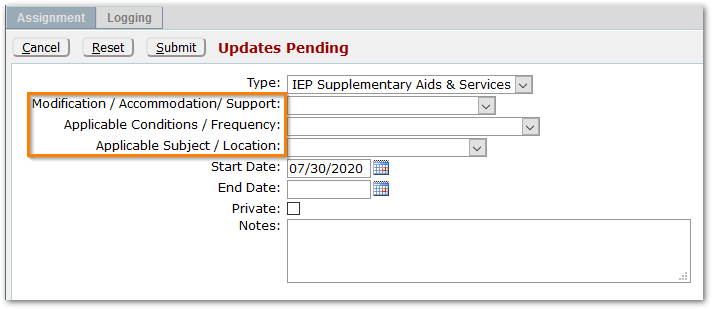
Depending on your district’s configuration, your options may appear differently for each possible Accommodation Type. Select the desired value from each of the available drop-down selections that apply.
Note:
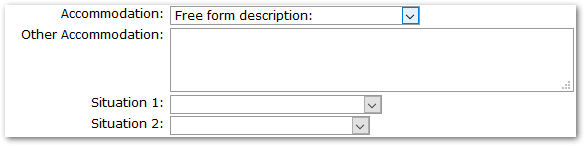
For any of the Accommodation, Situation 1 or 2 fields, there may be entries that cause an open text area to appear below it for additional notes. If this occurs based on your district configuration and your selection, enter any appropriate notes, as needed.
Start Date – This will default to Today’s date but may need to be back-dated to the governing plan date, i.e. the IEP Date, or 504 Date.
End Date – Depending on the source of the Accommodation, the End Date may need to either be set to the end of the year, or the expected start date of the next IEP, etc. If left blank, the Accommodation will be open-ended.
Private – Checking this box will limit access to the accommodation assignment to the user making the entry. Users with Student Accommodations: Administrator access can view and edit private entries but cannot remove the privacy setting. In addition, accommodations marked ‘Private’ will not be visible or accessible to teachers to log through class banner applications.
Notes – The notes field will be visible to teachers logging accommodations. Add any information from the governing plan (IEP, 504 etc.) that will help guide the teacher.
Click Submit to save the Accommodation or Cancel to return to the previous page without saving.
Once accommodations have been added for a student, they appear in a grid form, with details for the selected accommodation appearing at right.
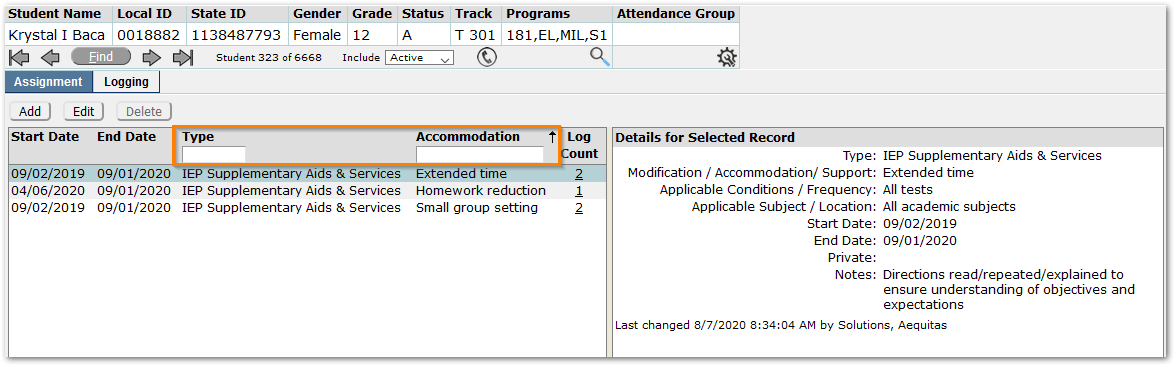
The columns may be sorted by clicking on the column header. An arrow shows the column currently sorting and the direction of the arrow indicates ascending or descending. In our example, accommodations are sorted on the Accommodation field, ascending.
Filter fields -Type and Accommodation- may be used to quickly find specific accommodations.
Log Count column shows the number of log entries for each accommodation. Click on the count to open the Accommodation Log for the accommodation.
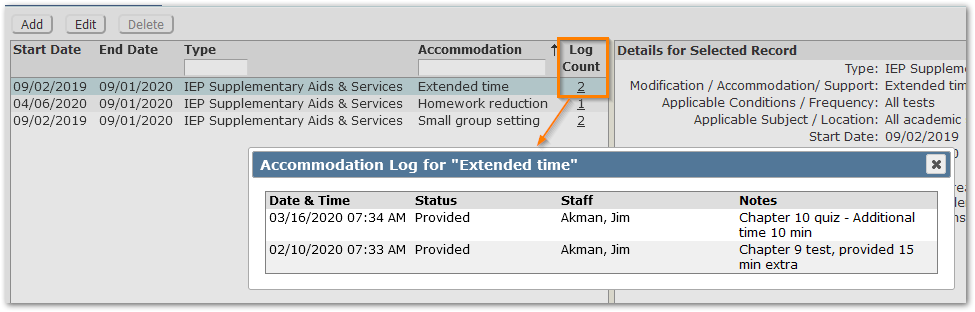
The Delete button will not be enabled for any accommodations that have log entries.
The Logging Tab enables users to view existing logs, add new log entries and edit or delete entries, with permission to do so.
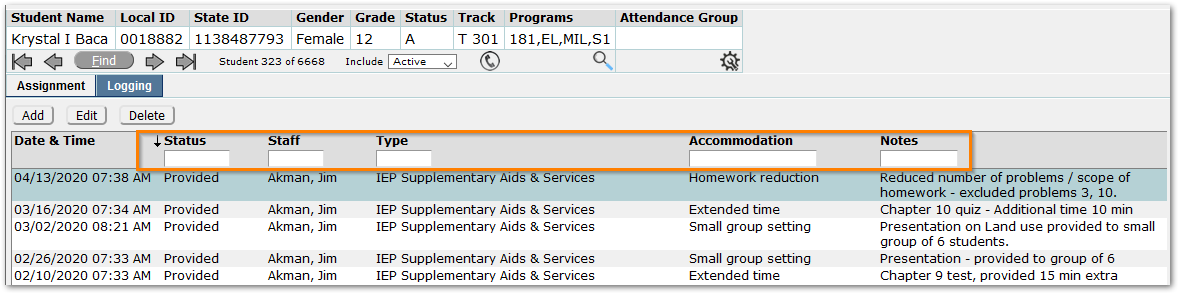
Column headers may be clicked to change the sort and clicked again to change the direction of the sort, ascending or descending. Filter the log entries by entering search criteria in the filter field under the column header.
To add a log entry, click Add.
Select an Accommodation. The accommodations that appear in the list are only those assigned to the student and in effect on the system date.
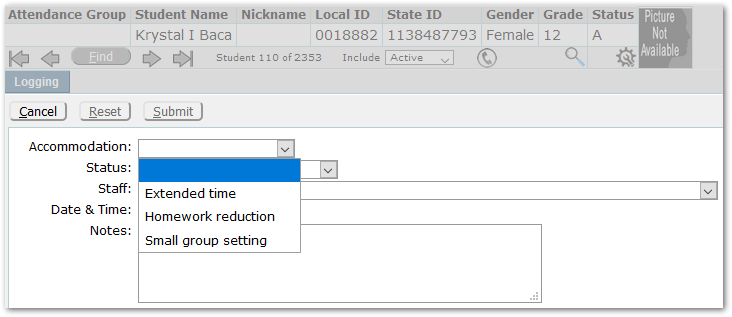
Status values may differ depending on the Accommodation. Select the appropriate status.
Staff drop-down will default to the logged in user. If adding the log entry for another staff member, select their name from the Staff drop-list.
Date & Time will default to today’s date and time. Click the calendar icon to select and set the date and time.
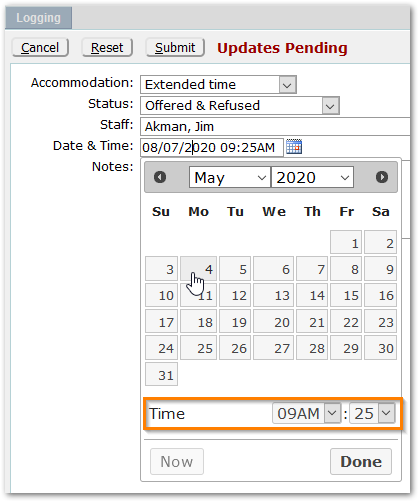
Notes – Add any notes associated with the accommodation.
Click Submit to save the record.
An Accommodation icon will appear next to students who have assigned accommodations in effect on the system date in the Roster or Seating Chart views of Class Banner applications such as Class Attendance, Class Behavior, Class Engagement, Class Testing and Grade Book. Teachers can click on the icon and add log entries for the selected student.