The CA Attendance Summary Calculation program runs a process that examines student enrollment and attendance data and creates report detail records used to generate the following CA District Attendance reports:
- CA District Attendance Audit Report
- CA District Attendance CDE Form (Detail and J18/19) Report
- CA District Attendance Monthly Accumulative Attendance Report
CA Attendance Summary Calculation is located under the Attendance menu in Q.
Prerequisites:
- Setup of CA Attendance Summary Calculation must be completed prior to running the process, see Setup Tab
- All bell schedules must be completed when applicable for the tracks being processed.
- All enrollment and attendance data must be up to date before running the calculation process.
- Attendance Recovery is integrated into CA District Attendance and has its own specific setup requirements. See CA Attendance Recovery documentation within State Reporting for further information.
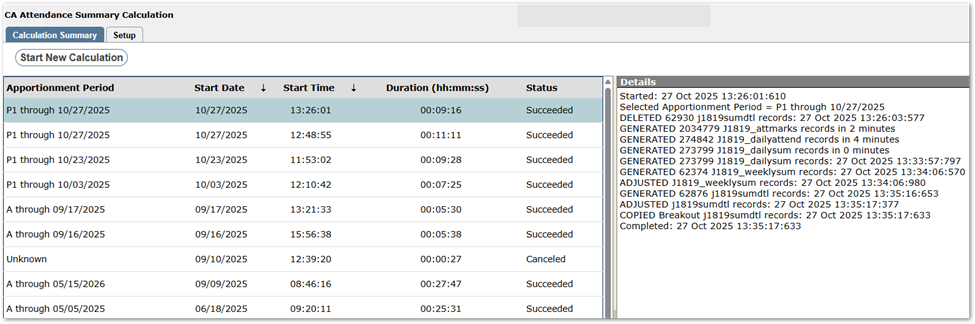
Calculation history appears at left with details for the selected record at right, if any calculation history exists.
The calculation process will:
- Check for incomplete or missing bell schedules.
- Delete all detail and surplus records for the selected submission period.
- Create a new set of detail and surplus records for the selected submission period.
The calculation runs in the background once started and may take a long time to complete. You may exit and re-launch the application to check on its status or progress without affecting the process.
Calculate Attendance
- Click Start New Calculation.
- Select the Apportionment Period to calculate.
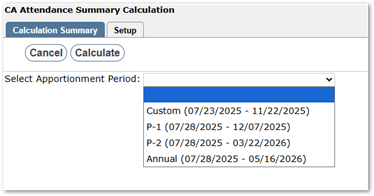
- Review the information presented and respond to the prompts.

- The existing summary detail data for the selected Apportionment Period will be deleted by the process.
- Click the checkbox to confirm you understand that the existing summary detail data will be deleted for the period selected.
Track Bell Schedules are used by the calculation. If there are tracks with partially assigned bell schedules or tracks without bell schedules, the application will warn the user and list the tracks. You must confirm to proceed or click Cancel to review and adjust bell schedules.
Partial Bell Schedule
Running the calculation for tracks with partial bell schedules results in invalid summary data. Users may click Cancel and correct the identified track’s bell schedule assignments or check the box to “Run the calculation even though these tracks have partial bell schedules.”
No Bell Schedule
Tracks without bell schedules will only produce correct results if:
- All track enrollments are for a full school day.
- No hourly calculations are required.
If all tracks listed in the warning message meet these criteria, check the box indicating the tracks meet the listed criteria.
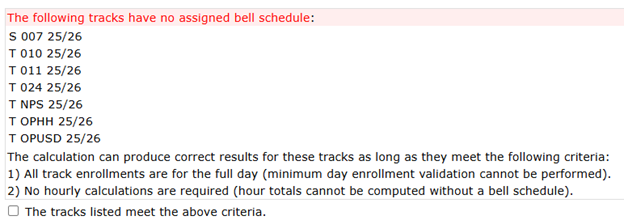
If users click Calculate without checking the confirmation boxes, a warning message will appear.

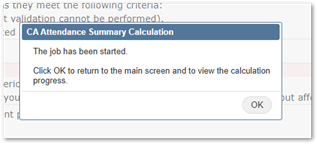
When bell schedules have been adjusted or confirmation boxes checked, click Calculate. A message will appear indicating the calculation job has started. Click OK to return to the main screen.
During the Calculation
The calculation history will appear at left, showing the current job with Apportionment, start date, time, duration, and status. Detailed progress information, including status and record counts, will appear at right.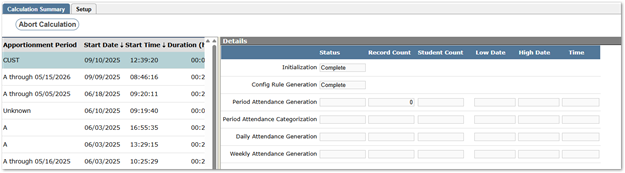
- When the process is complete, an alert message will appear. Click OK.
Abort Calculation
If you wish to stop the calculation process:
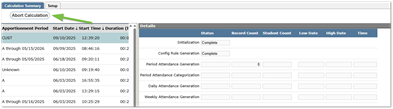
- Click Abort Calculation at the top left.
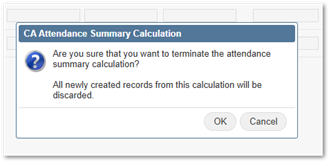
- Confirm you want to stop. All newly created records will be discarded.
- Click OK to confirm, or Cancel to continue the calculation.
- If you confirm, a message will appear. Click OK.
Next Steps
Use the CA District Attendance Audit Report to view results of the calculation.
Both the CA District Attendance Audit Report and the CA Monthly Accumulative Attendance reports may be run after the CA District Attendance Calculation process has been successfully completed for the period.
In order to run the CA District Attendance CDE Form report, the CA District Attendance Report Generation needs to be run for the period.
The Setup tab with sub-tabs provides an interface to maintain configuration files used by the CA Attendance Calculation process. Access to these tabs and sub-tabs is controlled by permissions.
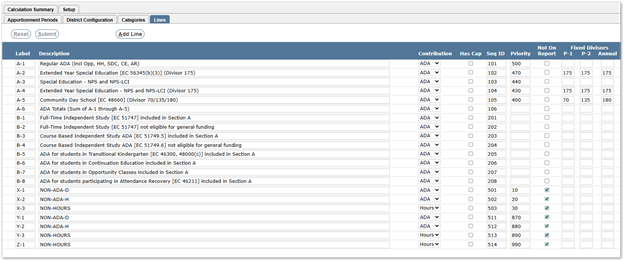
Categories and Lines are pre-populated for the CA Principal Apportionment Data Collection (PADC) and should not be changed
Access to Setup Subtabs may be controlled through permissions:
- Apportionment Periods - CA Attendance Summary Calculation [Setup]
- District Configuration - CA Attendance Summary Calculation [SetupConfig]
- Categories and Lines - CA Attendance Summary Calculation [SetupStructure]
Apportionment Periods
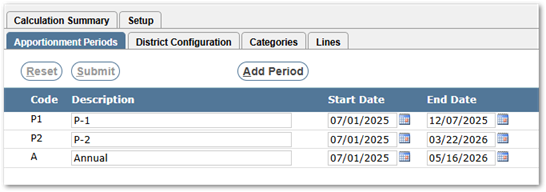
Set the start and end dates for appointment periods each year.
If the district is using summer school for Attendance Recovery, set the Start Date to a date just prior to or aligned with the start of Summer School for all periods, i.e. 7/1.
If you need an additional custom period, a period may be added using the Add Period button.
District Configuration
Districts will need to set the appropriate filters for the categories and lines of the District Attendance Report using the District Configuration tab.
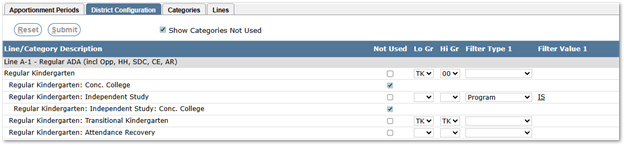
Lines that are not applicable in the district may be checked as ‘Not Used’, such as the two lines shown above for this district ‘Regular Kindergarten: Concurrent College’ and ‘Regular Kindergarten: Independent Study: Concurrent College.’
To view the screen without unused lines, uncheck the checkmark at the top of the screen ‘Show Categories Not Used’
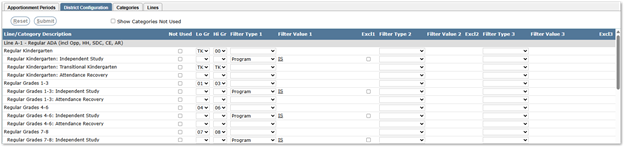
NOTE: Attendance Recovery is integrated into CA District Attendance (visible in the screenshot above) and has its own specific setup requirements and no additional configuration for it is needed on this tab. See CA Attendance Recovery documentation for more information.
Grade Ranges
Configure grade ranges for parent categories. They do not need to be set for each child under the parent if they are the same.
In the example above, Regular Kindergarten is a parent category with a grade range set from TK – 00. Transitional Kindergarten below it has a different grade range, so it is set to TK – TK.
Attendance Recovery configuration is entirely handled by the Attendance Recovery process, and no other configuration is necessary on this tab.
Filters
For each row, in addition to grade ranges, students may be filtered using the Filter Type columns. Open the Filter Type 1 drop-down list and select from among the options:
- School Type
- School
- Program
- Course Category
- Course Code
- Custom.

For Regular Kindergarten: Independent Study, for example, we’ll select Filter Type of Program.

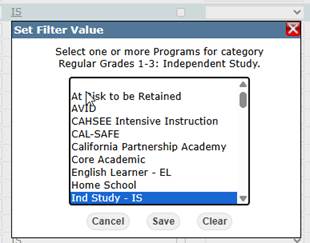
Once a Filter Type is set, select a Filter Value from the corresponding Filter Value field. In this example, we’ll select ‘Ind Study – IS’ and click Save.
Once the first set of filter fields and values are set, a second may also be set to further narrow the set of students. Up to three filter sets may be used.
In the Home / Hospital example below, a School Type of Home/Hospital (HOM) is specified AND a specific Course Code.

When multiple filters are specified, the result is that students must meet the criteria of the grade range, the first filter criteria and the second, etc.
The Excl checkboxes may be used to exclude students who meet the criteria, i.e. School Type Home/Hospital, except those in a specific course or program, etc.
Custom Filters
Custom Filter Type is used to apply SQL conditions. In the example below, Custom is selected as the Filter Type for Special Ed Ext Year with a SQL Statement specifying the extended year track codes of Y and S, along with enrollment in two specific programs identified in Filter Type 2.

Custom SQL statements are appended onto a WHERE clause in the Calculation procedure. They need to be contained in parenthesis and use the table J1819_attmarks. You may use any of the following fields:
j1819_attmarks.suniq
j1819_attmarks.trkuniq
j1819_attmarks.stuuniq
j1819_attmarks.stustatc
j1819_attmarks.ddate
j1819_attmarks.graden
j1819_attmarks.schoolc
j1819_attmarks.trackc
j1819_attmarks.schtypec
j1819_attmarks.coursec
j1819_attmarks.crscats
For example: EXISTS(SELECT suniq FROM studemo WHERE suniq = J1819_attmarks.suniq AND birthdate > ‘01/01/2009').
Verify Configuration
In order to verify the configuration, you will need to calculate attendance and generate the District Attendance report to view the results:
- When the District Configuration is complete, proceed to the Calculation Summary Tab and calculate attendance.
- When the calculation is complete, proceed to CA District Report Generation and add a Report Generation for the calculated period to view the report.
Make adjustments as needed to the District Configuration and repeat these steps until the report appears with expected results.
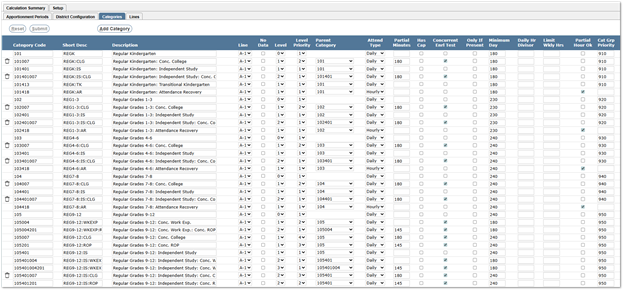
Categories
Data on the Categories Tab is pre-populated by Aequitas for the CA Principal Apportionment Data Collection (PADC) and should not be modified by districts.
Lines
Data on the Lines Tab is pre-populated by Aequitas for the CA Principal Apportionment Data Collection (PADC) and should not be modified by districts.